If your microphone not working Windows 11 issue is stopping calls, recordings, or voice chat, the fix is usually simple. In most cases, the problem comes from a muted mic, wrong input device, blocked permissions, or a driver glitch. This guide walks you through the fastest checks first, then moves to deeper fixes if needed. You can follow the steps in order and stop when the mic works again.
📖 Table of Contents
📌 Key Takeaways
- Start with the basics: check mute buttons, cable connections, and whether the correct mic is selected in Windows 11.
- Windows privacy settings can block microphone access, even when the mic works in other apps.
- Driver issues are common after updates, but reinstalling or updating the audio driver often fixes the problem fast.
- If nothing else works, run Windows troubleshooters and test the mic in Sound settings before replacing hardware.
1. Check the obvious fixes first
Before changing settings, make sure the microphone is actually on and connected. Many headsets have an inline mute switch or a physical mute button on the boom mic. If you are using a USB mic, unplug it and reconnect it to a different port.
Also check whether the app you are using has its own mute control. Zoom, Teams, Discord, and browser-based meeting tools can mute audio even when Windows is set correctly. A quick look at the app’s audio menu can save a lot of time.
Quick hardware checklist
- Make sure the mic is not muted on the headset or keyboard.
- Unplug and reconnect USB and 3.5 mm audio devices.
- Try a different USB port or audio jack.
- Confirm the cable is seated all the way in.
2. Set the correct input device in Windows 11
One of the most common reasons for microphone not working Windows 11 issues is that Windows is listening to the wrong input. This can happen after a software update, when you plug in a new headset, or if you have both a laptop mic and an external mic connected.
To fix this, go to Settings > System > Sound. Under Input, choose the microphone you want to use. Then speak into it and watch the input level bar to see if Windows detects sound.
What to look for in Sound settings
- Choose a device for speaking or recording: pick the correct mic.
- Test your microphone: speak and check for movement in the level meter.
- Volume: make sure it is not set too low.
| Symptom | Likely Cause | Best Next Step |
|---|---|---|
| Mic works in one app but not another | App permission or app-specific input setting | Check privacy settings and the app’s audio menu |
| No input level at all | Wrong device, mute, or driver issue | Select the right mic and test hardware |
| Mic worked yesterday, not today | Windows update or driver conflict | Restart, then update or reinstall the driver |
3. Turn on microphone permissions in Windows 11
Windows 11 privacy settings can block microphone access system-wide or for individual apps. This is especially common after fresh installs, major updates, or when you use a new app for the first time. If Windows is blocking access, the mic may seem broken even though the hardware is fine.
Go to Settings > Privacy & security > Microphone. Turn on Microphone access, then make sure Let apps access your microphone is also on. If you use a desktop app, scroll down and confirm it is allowed too.
Permission checks that matter most
- Microphone access must be on.
- Let apps access your microphone must be on.
- Check the specific app in the list, if shown.
- If it is a browser app, make sure your browser can use the mic.
For browser-based calls, open the browser’s site settings and confirm microphone access is allowed for that site. If needed, refresh the page after changing permissions so the new setting takes effect.
4. Fix drivers and Windows audio settings
If the microphone still does not work, the problem may be the audio driver. Drivers can become corrupted, outdated, or mismatched after a Windows update. A driver refresh is one of the best next steps when basic settings look right but input still fails.
Open Device Manager, expand Audio inputs and outputs, and look for your microphone. If you see a warning symbol, that is a strong clue. You can right-click the device and choose Update driver, or uninstall it and restart your PC so Windows reinstalls it.
Driver troubleshooting steps
- Right-click the Start button and open Device Manager.
- Expand Audio inputs and outputs.
- Right-click your microphone and choose Update driver.
- If that does not help, choose Uninstall device and restart the PC.
- After restart, test the mic again in Sound settings.
If your PC came from a major brand, you may also want to check the manufacturer support page for the latest audio driver. That is often more reliable than a generic driver and can resolve chipset-specific problems.
5. Use Windows troubleshooters and test the mic
Windows 11 includes built-in troubleshooters that can detect common audio problems. They are not perfect, but they are a fast way to catch issues like disabled services, incorrect defaults, or obvious device conflicts. This is worth trying if the mic is still silent after permissions and driver checks.
Go to Settings > System > Troubleshoot > Other troubleshooters and run the audio-related troubleshooter. After that, return to Sound settings and speak into the mic again. If the input meter moves, the fix worked.
Simple testing order
- Test the mic in Windows Sound settings first.
- Then test it in a second app, such as Voice Recorder or a video call app.
- If it works in one app but not another, the issue is likely app-specific.
| Fix | Strength | Limitation |
|---|---|---|
| Change input device | Fast and easy | Does not fix hardware faults |
| Adjust privacy permissions | Often solves app access blocks | Must be done per app in some cases |
| Update or reinstall driver | Good for update-related bugs | Requires a restart |
| Run troubleshooter | Finds common system issues | May miss deeper driver problems |
6. Know when the mic itself may be the problem
If you have tried permissions, device selection, drivers, and troubleshooting, the issue may be physical hardware. A damaged cable, broken jack, failed USB port, or dead microphone capsule can all cause the same symptom: no sound.
To narrow it down, test the microphone on another Windows PC or another device if possible. If it works elsewhere, the problem is likely with your original PC settings or port. If it fails everywhere, the mic itself may need replacement.
Signs of hardware trouble
- The mic never shows any input level anywhere.
- The audio cuts in and out when you move the cable.
- One port works, another does not.
- The device is not detected at all.
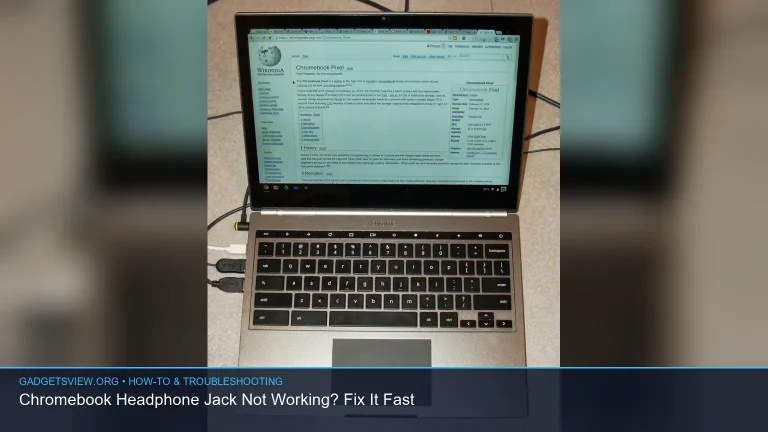
If you are using a laptop and wondering about built-in hardware, note that many laptops place the microphone near the webcam area or along the top bezel, not in an obvious visible slot. On an Acer Chromebook, for example, users often ask where is the microphone on an acer chromebook; it is typically built into the laptop chassis near the camera or keyboard area, depending on the model. For exact placement, the device manual or support page is the best source.
FAQ
Why does my microphone work in one app but not another in Windows 11?
This usually means the app has its own input setting or does not have microphone permission. Check the app’s audio settings first, then confirm Windows allows that app to use the microphone. Browser-based apps may also need site-level permission.
How do I test if Windows 11 can hear my microphone?
Go to Settings > System > Sound, select your input device, and watch the input level meter while speaking. If the meter moves, Windows is detecting sound. If it does not move, the issue is likely permissions, device selection, or the driver.
Should I reinstall the audio driver if my mic stopped working after an update?
Yes, that is a strong next step. Updates can sometimes change or corrupt audio driver behavior. Reinstalling the device in Device Manager often restores normal function after a restart.
Can a browser block microphone access in Windows 11?
Yes. Even if Windows allows microphone use, the browser may block it for a specific site. Check both Windows privacy settings and the browser’s site permissions before assuming the mic is broken.
What if my microphone still does not work after all these steps?
Test the mic on another device to separate software problems from hardware problems. If it fails on more than one device, the microphone may be defective. If it works elsewhere, focus on the Windows PC’s settings, drivers, or ports.
If your microphone is not working in Windows 11, start with the simplest fixes and work down the list. In most cases, the issue is a wrong input device, blocked permission, or a driver problem, not a major hardware failure. Once you find the step that restores input in Sound settings, test it in your main app and keep the working configuration in place.