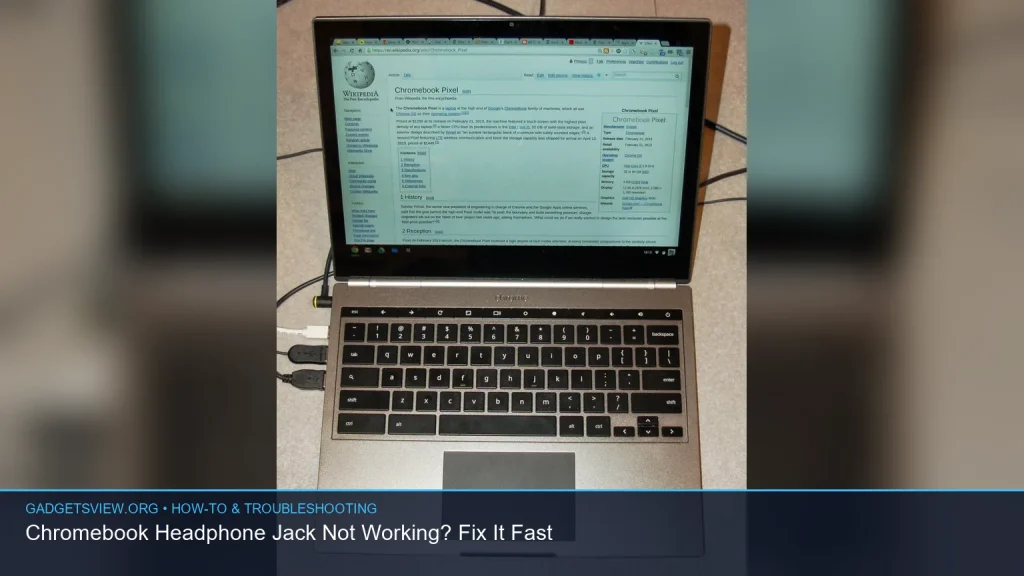
If your chromebook headphone jack suddenly stopped working, the fix is often simple. In many cases, the problem comes from a loose plug, dirty port, bad settings, or a temporary ChromeOS glitch. This guide walks you through fast checks first, then deeper troubleshooting so you can get sound back without wasting time. If the jack is damaged, you will also know when to move on to a USB-C adapter, Bluetooth audio, or a repair.
📖 Table of Contents
- Check the basics first
- Clean and inspect the chromebook headphone jack
- Confirm ChromeOS is sending sound to the right place
- Restart, update, and reset the audio state
- Know when it is a hardware issue
- Workarounds, tools, and Chromebook tips that help
- Helpful Chromebook checks for everyday use
- FAQ
- Conclusion
📌 Key Takeaways
- Start with the basics: remove and reinsert the plug, check volume, and make sure ChromeOS is sending audio to the right output.
- A dirty or loose chromebook headphone jack is one of the most common causes of no sound.
- Restarting, updating ChromeOS, and testing with another headset can solve many audio problems fast.
- If the port is damaged, a USB-C audio adapter or Bluetooth headset may be the quickest backup fix.
Check the basics first
Before you assume the port is broken, rule out the easy fixes. A loose plug, muted volume, or wrong output device can make a working jack seem dead. These quick checks take less than a minute and solve a lot of cases.
Start by turning the volume up and checking whether the audio is muted. Then unplug the headphones and plug them back in firmly. If your Chromebook has a case on it, remove it for a moment to make sure the plug can seat fully.
Quick audio checklist
- Make sure the headphones or earbuds work with another device.
- Try a different pair of wired headphones.
- Press play on a video or music file with sound.
- Check if the Chromebook is paired to Bluetooth audio instead of wired audio.
- Confirm the volume keys are not set too low.
If your Chromebook is connected to Bluetooth headphones, the wired jack may not take over the way you expect. Disconnect Bluetooth audio and test the port again. That simple step often reveals the real issue.
Clean and inspect the chromebook headphone jack

Dust, pocket lint, and tiny debris can block the jack or keep the plug from clicking into place. Even a small obstruction can stop the Chromebook from detecting your headphones. A careful clean-up is often the fastest real fix.
Turn the Chromebook off first. Then use a flashlight to look inside the port. If you see debris, gently remove it with a dry, soft brush or a can of compressed air used with light bursts.
What not to do
- Do not use metal tools inside the port.
- Do not spray liquid cleaners directly into the jack.
- Do not force the plug if it feels blocked.
If the plug feels loose or only works when held at an angle, the port may be worn or damaged. That is a hardware clue, not just a settings problem. In that case, keep going through the steps below, but be ready for a repair or workaround.
Confirm ChromeOS is sending sound to the right place
Sometimes the chromebook headphone jack is fine, but ChromeOS is still routing audio elsewhere. This can happen after a system update, a Bluetooth reconnect, or a temporary software glitch. Checking the sound output takes only a few clicks.
Open the Quick Settings panel in the lower-right corner and look at the audio controls. If you see a list of output devices, choose your wired headphones. Then test sound again with a video, song, or system sound.
Also check for volume sliders that affect the app itself. A browser tab, media player, or meeting app can be muted even if the system volume is on. That mismatch can make the jack seem faulty when it is not.
| Symptom | Likely cause | Best next step |
|---|---|---|
| No sound at all | Wrong output or muted audio | Check Quick Settings and app volume |
| Sound cuts in and out | Loose plug or dirty port | Inspect, clean, and test another headset |
| Only one side plays | Bad earbuds or worn jack contact | Try a second pair of headphones |
| Works once, then stops | Software glitch or port wear | Restart and update ChromeOS |
Restart, update, and reset the audio state
ChromeOS is usually stable, but audio can still get stuck after sleep mode, app crashes, or updates. A restart clears many temporary problems. If the jack works after rebooting, the issue was likely software-related.
After restarting, check for updates. A recent ChromeOS update may include audio fixes or device driver improvements. Go to Settings, then About ChromeOS, and look for available updates.
If audio still fails, try this order
- Shut down the Chromebook fully.
- Disconnect all accessories, including USB devices and Bluetooth audio.
- Restart and test wired headphones again.
- Install any pending ChromeOS updates.
- Test in a different browser tab or media app.
If the sound works in one app but not another, the problem is likely app-specific. If nothing works anywhere, move on to a hardware check or a system-level issue.
Know when it is a hardware issue
If the jack only works when the connector is twisted, pressed, or held in a certain position, the port may be damaged. That can happen from repeated use, bent plugs, or physical wear over time. At that point, software fixes usually will not solve it.
You can still test one more thing: a second set of wired headphones with a standard 3.5 mm plug. If multiple headsets fail the same way, the Chromebook port is the more likely problem. If only one headset fails, the headphones themselves may be the issue.
Other signs of a broken jack
- Headphones are not detected unless you push hard on the plug.
- Audio only works through speakers.
- Sound crackles or drops when the laptop moves.
- The plug feels unusually loose or does not stay seated.
For a damaged jack, repair may be possible, but it is not always the fastest route. A USB-C audio adapter or Bluetooth headset can be the simpler short-term answer, especially if you need the device for school or work right away.
Workarounds, tools, and Chromebook tips that help
If you need audio now, there are reliable alternatives. A USB-C to 3.5 mm adapter can bypass a bad jack. Bluetooth audio can also work well, though it depends on battery life and compatibility. For many users, this is the most practical backup while they decide whether to repair the port.
Some people also ask about using a windows emulator for chromebook or crostini chromebook for apps that need special audio settings. Those tools are mainly for software compatibility, not fixing a broken jack. If the port itself is failing, changing the environment will not repair the hardware.
| Option | Strengths | Limitations | Best for |
|---|---|---|---|
| Wired jack repair | Restores original setup | May require service and downtime | Users who want the built-in port working again |
| USB-C adapter | Fast, simple workaround | Uses a port and adds another accessory | People who need audio now |
| Bluetooth headphones | Wireless and flexible | Needs charging and pairing | Users who want convenience over cables |
Who should choose what? If you want the fastest fix, choose a USB-C adapter. If you want fewer cables, choose Bluetooth. If the Chromebook is otherwise in great shape and the port still has physical life left, professional repair may be worth it.
Helpful Chromebook checks for everyday use
While you are troubleshooting, it helps to know a few other Chromebook basics. If you need device details, use Settings to see your model and specs, or search the web for how to check chromebook specs and chromebook serial number guidance from Google’s support pages. That information can help if you need service or a replacement part.
Many users also ask how much ram does a chromebook have. RAM varies by model, so check your device specs rather than guessing. The same goes for features like a chromebook with number pad, which depend on the specific model and keyboard layout.
If you are learning the device, a few shortcuts can save time. Search terms like chromebook shortcut keys and search button on chromebook usually point to the Launcher/Search key and common keyboard commands. Those are useful for opening settings quickly during troubleshooting.
Other common questions are less related to the jack, but still useful for Chromebook owners. You may want to compare browsers for chromebook if one browser behaves oddly, or learn connect chromebook to tv steps for streaming audio and video to a larger screen. If you are shopping, search for a best budget chromebook after you confirm which ports and features matter most.
And if the battery is dead, you may wonder how to charge a chromebook without charger. The safe answer is to use a compatible USB-C charger if your model supports it. If not, do not improvise with an unknown power source. Check the manufacturer guidance first.
FAQ
Why does my Chromebook recognize headphones sometimes but not always?
This usually points to a loose connection, debris in the jack, or wear inside the port. Test with another pair of headphones, clean the port carefully, and see whether the problem changes when you move the plug.
Can a browser problem cause the Chromebook headphone jack not working?
Yes, if the issue only happens in one site or app. Try another browser tab, another browser, or another media source. If sound works elsewhere, the jack is probably fine.
Do Crostini apps or a Windows emulator for Chromebook fix audio jack issues?
No. Those tools may help with app compatibility, but they do not repair a hardware audio port. If the jack is failing, focus on audio settings, the port itself, or an external audio adapter.
What is the fastest workaround if I need sound now?
Use Bluetooth headphones or a USB-C audio adapter. Both bypass the built-in 3.5 mm jack and can get you audio right away while you decide whether to repair the device.
How do I know if I need repair instead of troubleshooting?
If multiple headsets fail, the plug feels loose, or audio only works when you press the connector at an angle, the port is likely damaged. At that point, a repair shop or replacement workaround is the better next step.
Conclusion
When a chromebook headphone jack stops working, the fix is often simple: check the output, clean the port, restart, and test another headset. If those steps fail, the issue is more likely hardware-related. Use a USB-C adapter or Bluetooth audio if you need a fast backup, and seek repair if the jack seems physically damaged.
For the best result, work through the checks in order. That saves time, avoids guesswork, and gets your Chromebook audio back as quickly as possible.