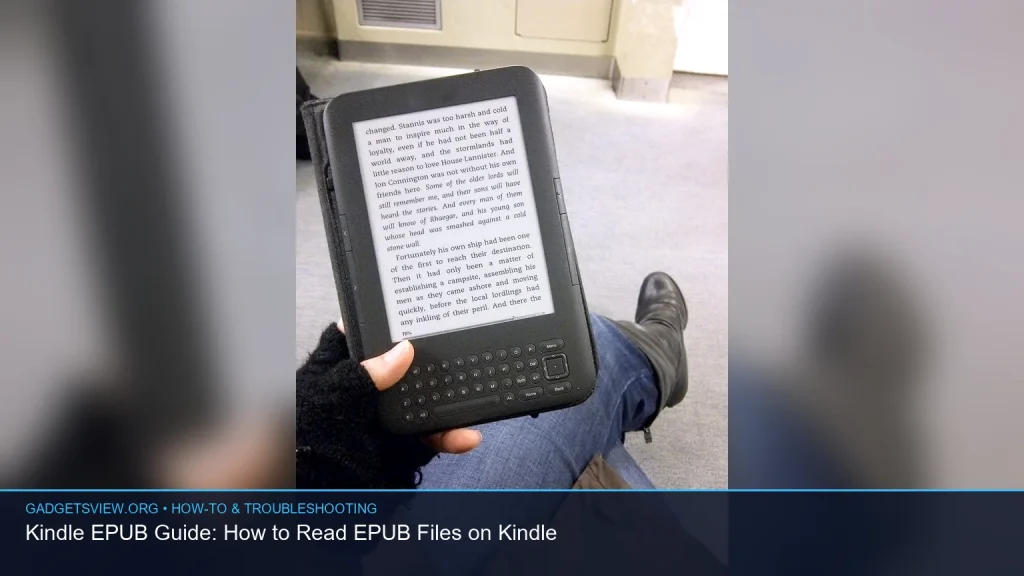
If you want to read EPUB files on a Kindle, the short answer is: Kindle devices do not natively support EPUB, but you can still read those files by converting them or sending them through Amazon’s supported tools. In most cases, the easiest path is to use Amazon’s Send to Kindle service, which converts EPUB files for you. This guide explains the best methods, what works on different Kindle models, and how to fix common problems so your kindle epub setup is smooth and simple.
📖 Table of Contents
- What “Kindle EPUB” Really Means
- Can Kindle Read EPUB Files Directly?
- The Best Ways to Read EPUB on Kindle
- How to Send an EPUB to Kindle
- How to Convert EPUB for Kindle Manually
- Troubleshooting Common Kindle EPUB Problems
- How to Improve EPUB-to-Kindle Results
- FAQ: Kindle EPUB Questions
- Conclusion: The Best Kindle EPUB Path
📌 Key Takeaways
- Kindle does not directly open EPUB files, but Amazon now accepts EPUB through Send to Kindle.
- The simplest option for most readers is to upload EPUB files to Amazon, which converts them for Kindle.
- If a file fails, check for DRM, file size, formatting issues, or a damaged EPUB before trying another method.
- For the best results, keep your EPUB clean, organized, and free of protection that blocks conversion.
What “Kindle EPUB” Really Means
EPUB is one of the most common ebook file formats, but Kindle devices use Amazon’s own format family instead. That is why a plain EPUB file may not open the same way a Kindle book does. The good news is that you do not need to give up on your EPUB library just because you own a Kindle.
In practice, “kindle epub” usually means one of two things: converting an EPUB so Kindle can read it, or sending the EPUB to Amazon so it gets converted for you. The second option is usually the easiest for casual readers. The first can be better if you want more control over the final file.
Can Kindle Read EPUB Files Directly?
Not in the same way it reads native Kindle books. Older advice often said you had to convert EPUB files to MOBI first, but that is no longer the main path for most users. Amazon now supports EPUB uploads through Send to Kindle, which makes the process much easier.
That said, support does not mean perfect compatibility. Some EPUB files convert cleanly, while others may lose formatting or fail because of DRM protection, embedded fonts, or unusual layout code. So the file type is supported in a practical sense, but results can vary.
The Best Ways to Read EPUB on Kindle
There are a few good ways to get an EPUB onto your Kindle. The right one depends on whether you want convenience, control, or offline flexibility. Here is a simple comparison.
| Method | Best For | Strengths | Limitations |
|---|---|---|---|
| Send to Kindle | Most readers | Easy, official, converts EPUB automatically | Can have formatting limits with complex books |
| USB transfer after conversion | Users who want manual control | Works offline, useful for side-loaded files | Requires conversion software first |
| Email to Kindle | People who want quick delivery | Simple, wireless, tied to your account | Needs the right approved email setup |
Who should choose what? If you want the easiest answer to “how do I open a kindle epub file,” use Send to Kindle. If you want more control over formatting or need offline transfer, convert the EPUB yourself and sideload it. If you prefer fast wireless delivery, email can be a good middle ground.
How to Send an EPUB to Kindle
This is the most straightforward method for most people in the US. You upload the EPUB file to Amazon’s Send to Kindle system, and Amazon converts it for reading on your Kindle apps or device. The exact interface may change, so if you are following this later, it is smart to confirm the current Amazon steps.
- Check your EPUB file. Make sure the file opens properly on your computer before uploading it.
- Sign in to your Amazon account. Use the same account linked to your Kindle device or Kindle app.
- Upload the EPUB. Use Send to Kindle from Amazon’s website or supported app.
- Wait for conversion. Amazon will process the file and send it to your Kindle library.
- Sync your device. On your Kindle, refresh or sync to download the converted book.
This method is usually best when you want a quick result with minimal setup. It is also the most beginner-friendly choice if you are new to managing ebook files. If the file does not appear, the issue is often with account sync, file corruption, or unsupported content inside the EPUB.
How to Convert EPUB for Kindle Manually
Manual conversion gives you more control, which can help if a file does not look right after Amazon conversion. People often use ebook management software to convert EPUB into a Kindle-friendly format. This route is helpful when you want to fine-tune metadata, chapter breaks, or layout behavior.
For simple novels and text-heavy books, manual conversion often works well. For books with images, tables, footnotes, or complex design, results can vary more. If you are converting a purchased book, always make sure you have the right to convert and use the file in this way.
When manual conversion makes sense
- The EPUB does not upload cleanly through Send to Kindle.
- You want to review how the file looks before sending it.
- You need to fix broken chapter links or bad formatting.
- You are working with a personal document or non-DRM ebook.
Troubleshooting Common Kindle EPUB Problems
If your EPUB will not open, does not sync, or looks messy on Kindle, do not assume the file is impossible to use. Most issues come from a few common causes. A quick check can usually point you in the right direction.
| Problem | Likely Cause | What to Try |
|---|---|---|
| File will not upload | Damaged file, DRM, or unsupported content | Test the file on another reader and confirm it is DRM-free |
| Book appears but will not open | Conversion problem or sync delay | Resend the file, then sync the Kindle again |
| Formatting looks broken | Complex EPUB layout | Try another conversion method or simplify the source file |
| Missing images or chapter links | EPUB structure issue | Validate the file and check the EPUB in another reader first |
Important caution: DRM-protected books often cannot be freely converted. If the EPUB came from a store with digital protection, Kindle compatibility may be limited by the file’s rights and the seller’s terms. Always verify the source and licensing before trying workarounds.
How to Improve EPUB-to-Kindle Results
If you want your ebook to look better on a Kindle, small prep steps can make a big difference. Clean files tend to convert more reliably and display more consistently. This matters most for books with lots of formatting or custom layout.
- Use a clean EPUB. Remove unnecessary extra styles and messy embedded formatting when possible.
- Keep images simple. Large or oddly placed images can cause layout issues on e-ink screens.
- Check chapter structure. A well-built table of contents improves navigation on Kindle.
- Avoid DRM when you need compatibility. Protected files often block normal transfer and conversion.
- Test before sending. Open the EPUB in another reader first to catch obvious problems early.
For fiction and most standard nonfiction, Kindle usually handles converted EPUB files well. For cookbooks, photo-heavy books, or highly designed guides, some layout changes are normal. That is not always a failure; it is often a limitation of reflowable ebook reading.
FAQ: Kindle EPUB Questions
Does Kindle support EPUB files now?
Yes, Kindle users can send EPUB files through Amazon’s Send to Kindle system, which converts them for Kindle use. But Kindle devices still do not simply open EPUB files like they would a native Kindle format file. The conversion step is what makes it work.
Why does my EPUB look different on Kindle?
Kindle uses reflowable text and its own display rules, so fonts, spacing, and images may not match the original EPUB exactly. This is normal, especially with books that include custom styling. The more complex the file, the more likely the layout will shift.
Can I read DRM-protected EPUB files on Kindle?
Usually not in a simple or universal way. DRM can block conversion and transfer, depending on where the ebook came from and what rights are attached to it. If a file is protected, check the seller’s official reading options and support terms.
What is the easiest way to put an EPUB on Kindle?
For most people, Send to Kindle is the easiest method. It is official, simple, and does not require extra software for basic use. If the file has problems, then manual conversion may be worth trying.
Will converting an EPUB damage the book?
It should not damage the book file itself, but the reading experience may change. Some formatting, image placement, or links may not carry over perfectly. Keep a backup of the original EPUB so you can try another method if needed.
Conclusion: The Best Kindle EPUB Path
If you want to read EPUB files on Kindle, start with Send to Kindle. It is the simplest and most reliable option for most readers, and it usually removes the need for manual conversion. If the file does not behave well, check for DRM, file damage, or layout complexity before trying another route.
For the best results, keep your EPUB files clean, test them before sending, and use the method that matches your needs. If you want convenience, use Amazon’s conversion tools. If you want more control, convert the file yourself and then transfer it.