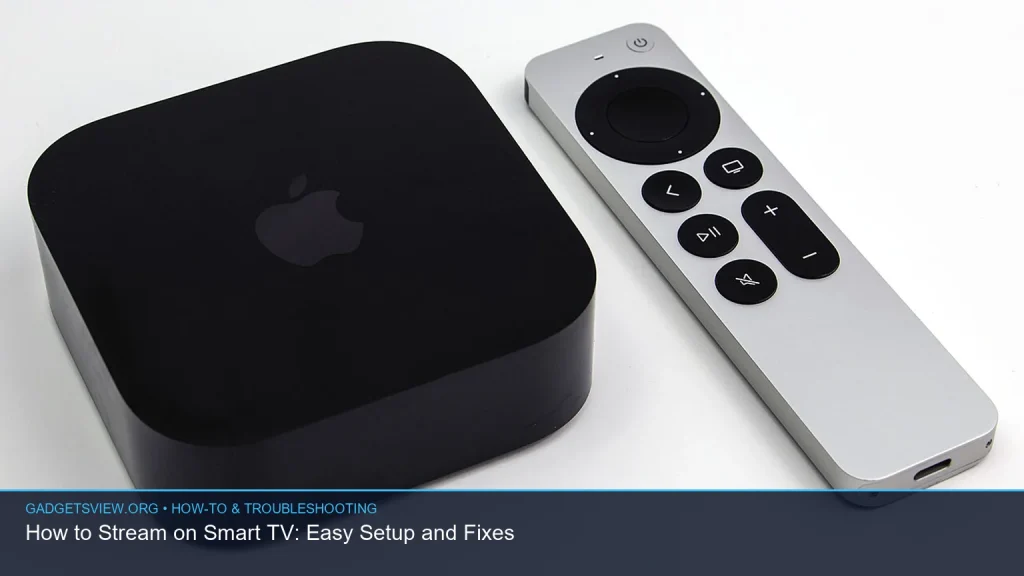
If you want to how to stream on smart tv, the process is usually simple: connect the TV to Wi‑Fi, sign in to a streaming app, and start watching. The exact steps depend on your TV brand, the app, and whether you’re using built-in streaming or a device like a Roku, Fire TV, or Chromecast. This guide walks you through the setup, common fixes, and what to do when streaming does not work as expected.
📖 Table of Contents
📌 Key Takeaways
- Most Smart TVs need a stable Wi‑Fi connection, a signed-in streaming app, and the latest software update.
- If streaming fails, the cause is often simple: weak internet, outdated apps, login issues, or device compatibility problems.
- Restarting the TV, router, and app can fix many common playback errors fast.
- If your TV is older, a streaming device may be the easiest way to get better app support and smoother playback.
What You Need Before You Start
Before you stream, make sure your Smart TV is connected to the internet. You will also need a streaming app account for services like Netflix, Hulu, Disney+, Prime Video, or YouTube, depending on what you want to watch. If your TV supports voice search or casting, that can make navigation easier, but it is not required.
It also helps to know your TV’s menu layout. Different brands place network settings, app stores, and updates in different spots, so a few minutes of setup can save time later. If you are not sure where something is, use your TV manual or the built-in help menu.
How to Stream on Smart TV: Easy Setup Step by Step
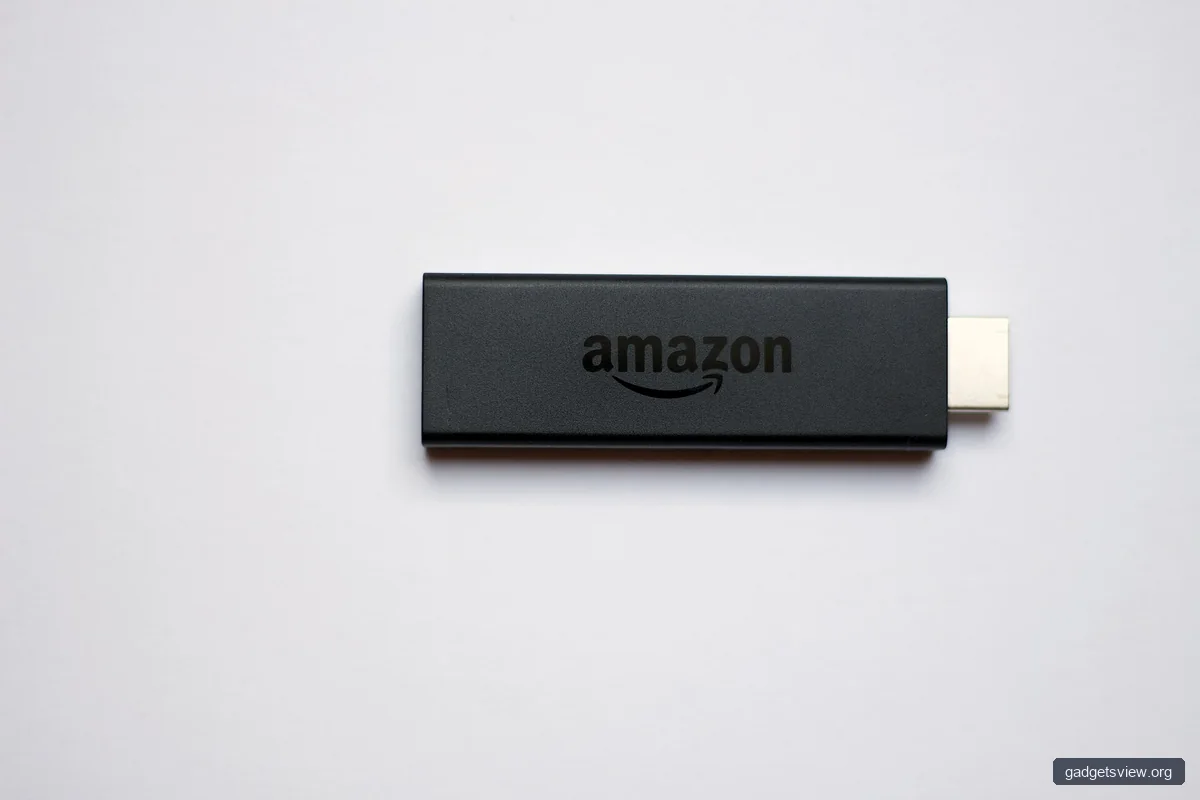
Once your TV is online, the setup is usually straightforward. Follow these steps in order for the cleanest start.
- Turn on the TV and open the main menu. Look for Settings, Home, or Apps depending on your TV brand.
- Connect to Wi‑Fi or Ethernet. Go to Network settings and choose your home network. Enter the password carefully.
- Update the TV software. Check for firmware or system updates before installing apps. Updates often fix app bugs and streaming glitches.
- Open the app store. Find the streaming service you want and install it if needed.
- Sign in to the app. Use your existing account details or create a new account if required.
- Select a title and press play. If the app supports it, adjust video quality, subtitles, or audio settings in the playback menu.
If your Smart TV already has the app preinstalled, you may only need to log in. In many cases, the first launch will guide you through account linking with an activation code. Keep your phone or laptop nearby in case the app asks you to finish setup on another device.
Built-in Apps vs Streaming Devices
Many Smart TVs have built-in apps, but not all older models keep them updated for long. A streaming device plugs into your TV’s HDMI port and gives you a separate interface with app access. That can be useful if your TV menu feels slow or if certain apps no longer work well on the TV itself.
| Option | Strengths | Limitations | Who Should Choose It |
|---|---|---|---|
| Built-in Smart TV apps | Simple setup, fewer cables, one remote | Can slow down over time, app support may vary | Anyone with a newer TV and working app support |
| Streaming device | Often faster updates, broad app support, easy replacement | Adds another device and remote | People with older TVs or app issues |
| Casting from phone or tablet | Easy for quick sharing, good for supported apps | Depends on app support and network quality | Users who want to start video from a mobile device |
Verdict: If your TV’s built-in apps work well, use them for the easiest experience. If you run into slow menus, missing apps, or frequent crashes, a streaming device is often the better long-term choice.
How to Cast or Mirror to Your Smart TV
Streaming does not always mean opening an app on the TV itself. You can also cast from a phone, tablet, or computer, depending on the app and the TV’s features. Casting is usually better than full screen mirroring because it sends the video directly to the TV and keeps your device free.
To cast, both devices should be on the same Wi‑Fi network. Open a supported app on your phone, tap the cast icon, and choose your TV from the list. For mirroring, use your device’s screen share feature and follow the on-screen prompts.
When Casting Works Best
- When you want a quick way to play a video without logging into the TV app.
- When the mobile app has better search, recommendations, or control features.
- When your TV app is outdated but casting is still supported.
Keep in mind that not every app supports casting. Also, if your Wi‑Fi is weak, video may buffer or disconnect even if the TV itself is working fine.
Common Problems and Fast Fixes
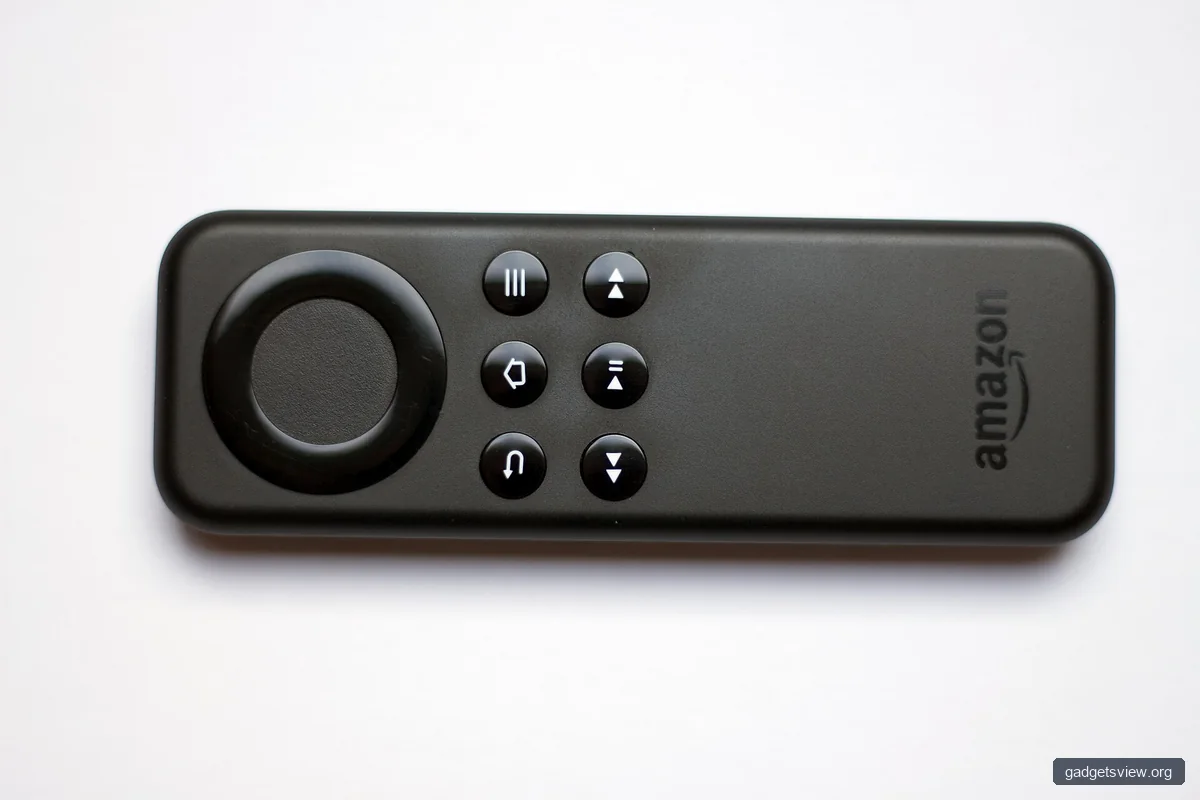
Most streaming problems come from a few repeat issues. The good news is that many of them have simple fixes you can try before calling support or replacing hardware.
| Problem | Likely Cause | Fix to Try First |
|---|---|---|
| App will not open | App glitch or outdated software | Close the app, restart the TV, and check for updates |
| Video buffers or loads slowly | Weak internet or network congestion | Restart the router, move closer to Wi‑Fi, or use Ethernet |
| No sound or no picture | Input issue, app bug, or HDMI problem | Check volume, input source, and cable connections |
| Can’t sign in | Wrong password or expired session | Reset the password or sign out and back in |
Step-by-Step Troubleshooting
- Restart the TV. Turn it off, unplug it for 30 seconds, then power it back on.
- Restart the router. Unplug the router and modem, wait 30 seconds, then reconnect them.
- Check the network connection. Run the TV’s network test if available.
- Update the app and TV software. Old versions can cause playback errors.
- Clear the app cache or reinstall the app. This often fixes frozen screens or login loops.
- Try another app. If one service works and another does not, the issue may be app-specific.
If streaming problems continue after these steps, the issue may be with your internet service, the TV’s hardware, or the app provider. In that case, check the app’s status page or support help before assuming the TV is the problem.
How to Improve Streaming Quality on a Smart TV
Even when streaming works, the picture may not look as sharp as you expect. A few simple adjustments can improve quality and stability without changing your setup.
- Use a strong Wi‑Fi signal. Place the TV or router where the signal is less likely to drop.
- Prefer Ethernet if possible. A wired connection is often more stable than Wi‑Fi.
- Limit other heavy internet use. Large downloads, gaming, and multiple streams can affect performance.
- Set video quality in the app. Some services let you choose lower or automatic quality to reduce buffering.
- Keep the TV updated. System updates often improve app compatibility and speed.
If your picture still looks blurry, check the app’s playback settings and the TV’s picture mode. Sometimes a “Vivid” or “Dynamic” mode looks bright but is not the best choice for streamed video. A standard or cinema mode may look more natural.
When to Use a Streaming Device Instead of the TV’s Built-In Apps
A streaming device can make sense if your Smart TV is older, slow, or missing the apps you want. It can also help if the TV’s software is no longer receiving updates. In those cases, the device becomes the main streaming system while the TV acts as the display.
Choose a device if you want easier app support, faster navigation, or a better interface. Stick with the TV’s built-in apps if they already work well and you prefer a simpler setup with fewer parts. The best option depends on what feels reliable in daily use.
FAQ
Why won’t my Smart TV connect to streaming apps?
This is often caused by a weak internet connection, an outdated app, or a TV software issue. Start by restarting the TV and router, then check for updates. If the app still will not connect, reinstall it or sign out and back in.
Do I need internet to stream on a Smart TV?
Yes, for most streaming services you need an internet connection. Some TVs can play local media from a USB drive or home network, but that is different from streaming online content. For regular streaming apps, Wi‑Fi or Ethernet is required.
What is the difference between casting and streaming directly on the TV?
Streaming directly means using the app on the TV itself. Casting means starting video from your phone, tablet, or computer and sending it to the TV. Casting can be more convenient, but direct streaming is often more stable.
Why does my Smart TV buffer even with good internet?
Buffering can happen if the TV app is outdated, the router is overloaded, or the Wi‑Fi signal is unstable. Try a router restart, move the TV closer to the router, or use an Ethernet cable. If only one app buffers, the issue may be with that service.
Should I reset my Smart TV if streaming keeps failing?
A full reset should be a last step, not the first. It can fix persistent software problems, but it also removes saved settings and apps. Try updates, restarts, and app reinstall steps before doing a factory reset.
Conclusion
Learning how to stream on smart tv is usually easy once the TV is online and the right app is installed. If problems show up, start with the basics: restart the TV, check your network, and update the software. For older TVs or stubborn app issues, a streaming device may be the simplest fix. If you are still stuck, check your TV model’s support page and the streaming app’s help center for current guidance.