Best Mini Computer For Home Office: A Practical Guide
Choosing the best mini computer for home office work can feel overwhelming. There are many compact machines on the market, each promising speed, silence, and space-saving design. Yet your real need is simple: reliable performance for the apps and tasks you use every day.
📖 Table of Contents
- 1. Why a Mini Computer Makes Sense for a Home Office
- 2. Key Specs to Prioritize
- 3. Configurations Compared
- 4. Real-World Setup Tips
- 5. Security, Backups, and Maintenance
- 6. Choosing the Best Mini Computer For Home Office: Decision Checklist
- Quick Answers to Common Questions
- Frequently Asked Questions (FAQs)
- Conclusion
This guide breaks down what matters most—performance, ports, expandability, and real-world setup tips—so you can pick a mini PC that fits your workflow. Read on to learn clear criteria, practical examples, a comparison table of common configurations, and answers to quick questions most buyers have.
📌 Key Takeaways
- Match CPU class and RAM to your workload: light tasks need less, multitasking or light media work needs more.
- Prioritize SSD storage and a good set of ports (USB-C, HDMI/DisplayPort, Ethernet) for a clean home office setup.
- Consider noise, thermal design, and VESA mounting for a neat, comfortable workspace.
- Plan for basic security and backup: WPA2/3 Wi‑Fi, BitLocker/FileVault options, and an external backup drive or cloud sync.
1. Why a Mini Computer Makes Sense for a Home Office
Small footprint, big advantages
Mini computers save desk space and reduce clutter. They can sit behind a monitor, attach to a VESA mount, or tuck into a bookshelf. For many people, that compact size equals a calmer, more focused workspace.
Enough power for typical office work
Modern mini PCs often use efficient laptop-style processors. That means you can run video calls, spreadsheets, document editing, and multiple browser tabs without a full desktop tower.
2. Key Specs to Prioritize
Processor
Choose a processor that fits your tasks. For web browsing and video calls, mainstream mobile-class CPUs are fine. If you edit video or run heavy spreadsheets, look for higher-performance options or discrete GPU support.
Memory (RAM)
For smooth multitasking, aim for at least 8 GB of RAM for light use and 16 GB for heavier multitasking or browser-tab-heavy days. More RAM helps prevent slowdowns when many apps run at once.
Storage
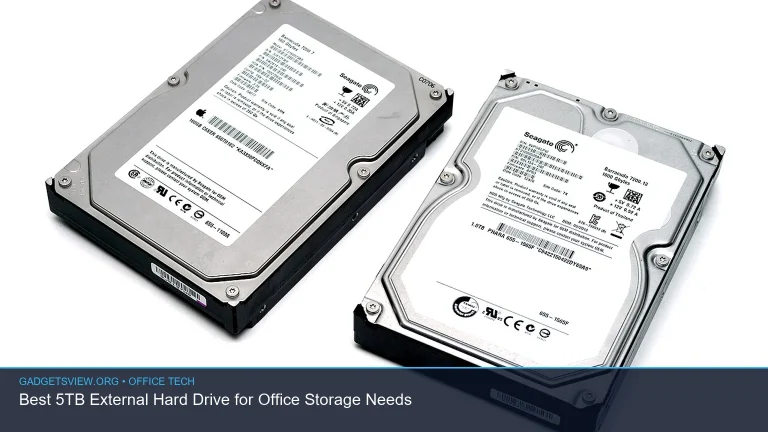
Prefer SSDs over hard drives for fast startup and app load times. A primary NVMe or SATA SSD paired with external/cloud backup covers both speed and safety.
Ports and expandability
Good port selection is crucial. Look for USB-C with power delivery, several USB-A ports, an HDMI or DisplayPort output, and a gigabit Ethernet jack if you want stable wired networking. An extra M.2 slot or SODIMM slot makes upgrades easier.
3. Configurations Compared
Below is a simple comparison of typical mini computer configurations to match common home office needs.
| Configuration | Typical Use | CPU Class | Memory | Storage | Pros | Cons |
|---|---|---|---|---|---|---|
| Entry-level | Email, docs, video calls | Efficient dual/quad-core | 8 GB | 256–512 GB SSD | Quiet, affordable, compact | Limited multitasking headroom |
| Productivity | Multitasking, spreadsheets, light photo edit | Quad-core or low-power six-core | 16 GB | 512 GB–1 TB SSD | Solid performance, good for most users | May lack discrete GPU |
| Creator/Power | Video editing, design, multiple displays | High-performance mobile CPUs, possible discrete GPU | 16–32 GB | 1 TB+ NVMe | Handles demanding apps, multiple monitors | Larger size, more heat, higher price |
| Thin Client / Media | Streaming, presentations, kiosk use | Low-power efficient cores | 4–8 GB | 128–256 GB SSD or eMMC | Low power, very small | Not for heavy multitasking |
4. Real-World Setup Tips
Monitor and desk arrangement
Use a monitor with at least one adjustable height. Mount the mini PC behind the monitor or under the desk to save space. Ensure cable paths are tidy to reduce distraction.
Connectivity and peripherals
If you use a laptop and mini PC, a single USB-C dock can switch peripherals between devices. A wired keyboard and mouse reduce wireless interference. Keep external drives accessible for backups.
Noise and thermal management
Place the mini PC where its vents get airflow. If noise is an issue, pick passively cooled models or those with low-RPM fans. Avoid stuffing the unit in closed cabinets that trap heat.
5. Security, Backups, and Maintenance
Basic security steps
Keep the operating system and apps updated. Use built-in disk encryption if available. Enable a firewall and use strong, unique passwords or a password manager.
Backup plan
Set up automatic backups to external drives or cloud storage. Test restores periodically to ensure your data is safe in case of failure.
Maintenance
Clean vents and fans occasionally. For upgradable models, check memory and storage slots to extend life as needs grow.
6. Choosing the Best Mini Computer For Home Office: Decision Checklist
Ask these questions before buying
- What apps do I use daily (browser, video calls, editing)?
- How many monitors will I run?
- Do I need a discrete GPU or just integrated graphics?
- Is quiet operation and small size a priority?
Example buyer scenarios
If your day is mostly web apps, email, and occasional video calls, aim for the productivity configuration with 16 GB RAM and an SSD. If you edit short videos or run virtual machines, prioritize stronger CPUs and at least 16–32 GB of RAM.
Quick Answers to Common Questions
How much RAM do I actually need?
For basic office tasks 8 GB can work, but 16 GB is a safer choice for multitasking and future-proofing.
Can a mini PC handle multiple monitors?
Yes. Many mini PCs support two or more displays via HDMI, DisplayPort, or USB-C. Check the video outputs before buying.
Are mini PCs noisy?
Noise varies by design. Passively cooled units are silent; actively cooled models depend on fan size and speed. Look for models noted for low acoustic output if noise matters.
Is a mini computer repairable or upgradable?
Some models allow RAM and storage upgrades; others are sealed. If upgradability matters, check for user-accessible slots or M.2/SODIMM options.
Frequently Asked Questions (FAQs)
Will a mini computer run all my business apps?
Most business and productivity apps run fine on modern mini PCs. Verify minimum OS and CPU requirements for specialized software before purchasing.
Should I choose Windows, macOS, or Linux?
Pick the OS that matches your software needs. Windows provides the widest app compatibility. macOS is limited to Apple hardware. Linux can be a good choice for privacy and customization if your apps support it.
How do I set up a backup routine?
Use built-in tools like File History, Time Machine, or third-party backup software. Schedule daily or weekly backups to external drives and enable cloud sync for critical documents.
What about wireless vs wired networking?
Wired Ethernet gives the most stable connection for video calls and large file transfers. Wi‑Fi is fine for general use; ensure you have a modern router with strong signal for the best wireless experience.
How long will a mini PC last?
With proper care and occasional upgrades, a mini PC can serve a home office for several years. Faster components and upgradeable storage/RAM help extend usable life.
Conclusion
Finding the best mini computer for home office comes down to matching specs to your daily tasks. Prioritize SSD storage, a sensible amount of RAM, and enough ports for your setup. Consider noise, mounting options, and upgradeability to get the most value and a tidy workspace.
Next step: list your daily apps and monitor count, then use the configuration table to narrow choices. From there, compare models that match your preferred CPU class and port layout, and check reviews and spec sheets to finalize your pick.