Working from home often means making smart choices about space, noise, and budget. A mini PC can solve all three: it frees up desk room, uses less power than a tower, and can handle everyday office tasks without a big price tag. This guide helps you find the best budget mini PC for home office use by focusing on real needs and practical trade-offs.
📖 Table of Contents
- Why pick a mini PC for your home office?
- What “budget” means — where to prioritize and where to compromise
- Best mini PC categories for home office (quick comparison)
- How to choose the best budget mini pc for home office
- Small upgrades and setup tips that stretch your budget
- Quick Answers to Common Questions
- Frequently Asked Questions (FAQs)
- Conclusion
Below you’ll find clear buying criteria, a comparison of popular mini PC categories, quick setup tips, and answers to common questions. By the end you’ll know which mini PC type fits your workflow and what small upgrades give the biggest returns.
📌 Key Takeaways
- Prioritize CPU performance and at least 8 GB RAM for smooth multitasking and video calls.
- Choose a mini PC with easy storage or RAM upgrades to extend lifespan without a big upfront cost.
- For most home office users, a compact Intel or AMD-based mini PC offers the best balance of performance and ports.
- Small upgrades like adding an NVMe SSD or extra RAM often beat buying a higher-end unit outright.
Why pick a mini PC for your home office?
Small footprint, big convenience
Mini PCs are designed to take up little desk space. They can sit behind a monitor, on a shelf, or mount to a VESA bracket. That makes them ideal for small home offices or shared household desks.
Lower power and noise
Many mini PCs use efficient processors and smaller fans. This typically translates to lower energy use and quieter operation than a full tower—helpful during long conference calls.
Enough power for common tasks
Budget mini PCs now handle email, documents, spreadsheets, web apps, video conferencing, and light multitasking comfortably. The key is matching the specs to your daily tasks.
What “budget” means — where to prioritize and where to compromise
CPU and RAM: the core priorities
CPU responsiveness and available RAM determine how many apps you can run at once. For a smooth home office experience, aim for a modern dual- or quad-core CPU and at least 8 GB RAM, with an option to upgrade to 16 GB later.
Storage: speed over sheer capacity
An SSD makes a much bigger difference to perceived speed than extra gigabytes. Prioritize an NVMe or SATA SSD over a larger but slower hard drive. If storage needs grow, external drives are an easy fallback.
Ports and connectivity
Ensure the mini PC has enough USB ports, a reliable Wi‑Fi standard, Bluetooth if you use wireless peripherals, and at least one HDMI or DisplayPort for your monitor setup.
Build quality and upgradability
Some budget mini PCs are sealed; others are barebones or user-upgradeable. If you want to keep costs low now and upgrade later, choose a model that allows adding RAM or swapping the SSD.
Best mini PC categories for home office (quick comparison)
| Category | Strengths | Typical use case | Pros | Cons |
|---|---|---|---|---|
| Compact Intel-based mini PCs | Balanced single-thread and multitasking performance | General productivity, web apps, video calls | Good compatibility, multiple ports, upgradeable RAM/SSD (varies) | Can be pricier at higher performance levels |
| AMD Ryzen mini PCs | Strong multi-core performance for multitasking | Heavy browser use, spreadsheets, light content work | Great performance per dollar, often good integrated graphics | Fewer ultra-compact models; check ports |
| Fanless or ultra-compact ARM/Intel Celeron units | Silent, very low power | Basic office tasks, point-of-sale, simple clients | Quiet, energy efficient, small size | Limited performance for heavy multitasking |
| Barebones mini PCs | Lower entry cost; add your RAM/SSD | Buyers who want to reuse parts or upgrade later | Customizable, often better value over time | Requires extra purchases and some assembly |
| Mini PC sticks | Plug directly into HDMI; extremely portable | Single-task kiosks or basic web browsing | Very cheap and portable | Limited RAM, performance, and ports |
How to choose the best budget mini pc for home office
Assess your daily workload
List the apps you use daily. Heavy web browsing, multiple tabs, virtual meetings, or local document editing increase CPU and RAM needs. Match the mini PC to your heaviest use case, not just the average.
Check display and peripheral support
Confirm the number of monitors you need and whether the unit supports them. If you use an external webcam, headset, or a wired keyboard and mouse, make sure there are enough available USB ports.
Plan for upgrades
Buying a unit with upgradeable RAM or an extra M.2 slot lets you start with a lower cost and add capacity later. That often gives the best long-term value.
Look for bundled or refurbished options
Refurbished mini PCs and barebones kits can offer strong value, but check return policies and warranties before buying.
Small upgrades and setup tips that stretch your budget
Priority upgrades
If the mini PC allows it, prioritize adding RAM and switching to an NVMe SSD. These two changes usually provide the biggest real-world speed improvements for office work.
Improve audio and video for calls
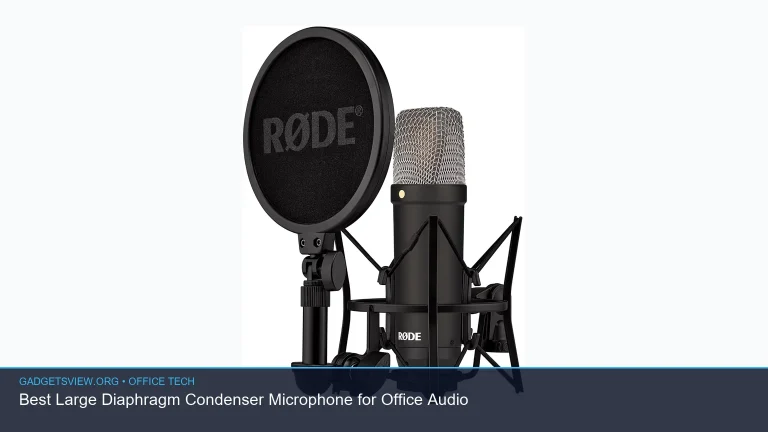
An external USB microphone and a compact USB webcam often improve call clarity more than upgrading the PC’s CPU. These are relatively low-cost additions that boost meeting quality.
Use a dock or USB hub
A powered USB hub or docking station expands ports and simplifies connecting multiple peripherals and monitors. This keeps the mini PC’s footprint small while giving you flexibility.
Quick Answers to Common Questions
Can a mini PC run two monitors?
Yes. Many mini PCs support dual monitors via HDMI, DisplayPort, or a combination. Verify the specific video outputs before buying.
Is a mini PC quieter than a laptop?
Often yes, especially fanless or low-power models. However, active-cooled mini PCs can produce similar fan noise to laptops under heavy load.
Will a mini PC handle video conferencing smoothly?
Most modern mini PCs handle video calls fine if they have enough RAM (8 GB recommended) and a decent internet connection. A good webcam and microphone improve the experience.
Are mini PCs secure enough for work?
Security depends on software and configuration. Keep the OS updated, use strong passwords, enable encryption, and follow your company’s security practices.
Frequently Asked Questions (FAQs)
How long do mini PCs typically last?
With normal use, a mini PC can last several years. Longevity depends on build quality, cooling, and whether you can upgrade components as software demands grow.
Should I choose Windows, Linux, or Chrome OS on a mini PC?
Choose based on apps: Windows offers the broadest compatibility for business apps; Chrome OS works well for web-based workflows; Linux is a good choice if you prefer open-source tools and lighter system requirements.
Can I replace parts in a mini PC?
Some mini PCs are user-upgradeable (RAM, SSD), while others are sealed. Check the product specs to see if components are accessible before purchasing.
Is a mini PC better than a laptop for a home office?
A mini PC offers a more permanent desktop setup with better cooling and more ports typically. A laptop provides portability. Choose based on whether you need to move your computer frequently.
What about warranty and support?
Warranty terms vary. For peace of mind, buy from brands or sellers that offer clear warranty coverage and a straightforward return policy. For refurbished units, verify the warranty length and coverage.
Conclusion
Choosing the best budget mini PC for home office depends on your workload and upgrade plans. For most users, a compact Intel or AMD mini PC with at least 8 GB RAM and an SSD strikes the right balance of speed, ports, and value. If you want the longest useful life for the lowest initial outlay, pick a model that allows you to add RAM or swap in a faster SSD later. Start with the specs that match your heaviest daily tasks, and use small, targeted upgrades to stretch your budget further.