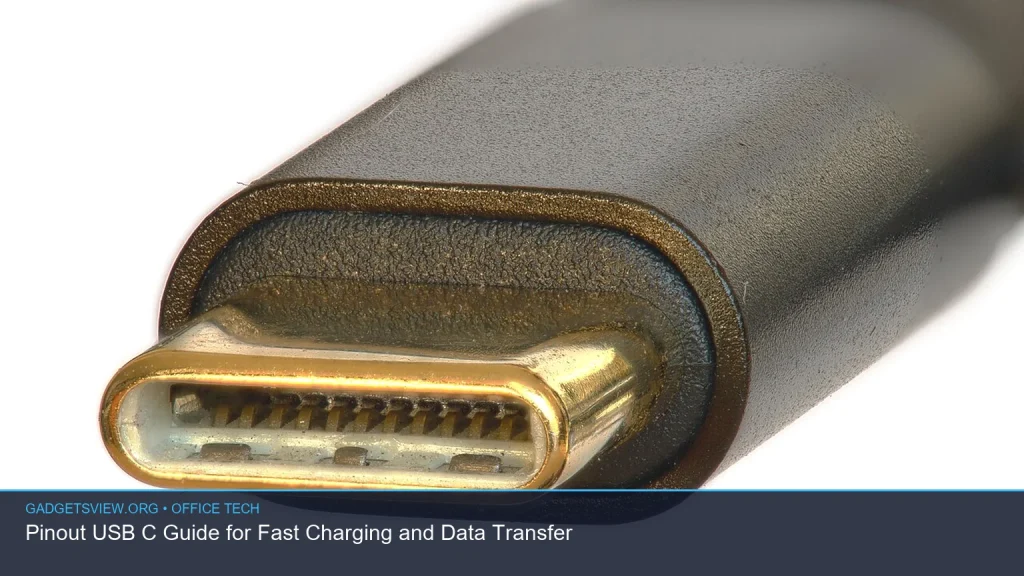
Understanding pinout usb c is the key to safer charging, faster data transfer, and fewer cable headaches. USB-C looks simple on the outside, but the pins inside decide whether a cable supports basic charging, usb c pd, video output, or high-speed data. This guide explains the USB-C pinout in plain English, shows how USB-C differs from older connectors, and helps you choose the right cable or adapter for office gear, monitors, docks, and peripherals.
📖 Table of Contents
- What USB-C Pinout Actually Means
- USB-C Pinout Basics: Power, Data, and Alternate Modes
- USB-C PD, Charging Speed, and What the Cable Must Support
- USB-C vs Older Connectors: What Changes and What Does Not
- Thunderbolt, Display Output, and Adapter Compatibility
- How to Read a USB-C Cable or Port Before You Buy
- FAQ: Pinout USB C and Common Compatibility Questions
- Conclusion: Choose the Right USB-C Path for the Job
📌 Key Takeaways
- USB-C is a connector shape, but the pinout usb c determines charging speed, data speed, and video support.
- Not every USB-C cable can do everything. Some carry only basic power and USB 2.0 data, while others support usb c pd, DisplayPort, or Thunderbolt.
- Older standards like micro usb vs type c and usb a vs usb c are not just different shapes; they often differ in power delivery and data capability too.
- When in doubt, check the device manual and the cable markings before using adapters like usb c type c to hdmi, usb c to usb b, or mini usb to usb c.
What USB-C Pinout Actually Means
USB-C is the reversible plug you see on many laptops, phones, tablets, docks, and accessories. The pinout is the internal wiring map that tells the device how to send power, data, and alternate signals through that connector. In simple terms, the shape is USB-C, but the pinout decides what it can really do.
This matters because two USB-C cables can look identical and still perform very differently. One may support only charging and slow data, while another may handle fast charging, high-speed transfers, and video output. That is why the term pinout usb c is so useful when you are trying to buy the right cable or troubleshoot a connection.
Why the pinout matters in office tech
In an office setup, USB-C often connects laptops to monitors, docks, storage drives, webcams, printers, and charging stations. If the cable pinout does not match the job, you may get charging but no display, or data but no fast charging. A correct pinout helps avoid wasted time and confusing errors.
USB-C Pinout Basics: Power, Data, and Alternate Modes
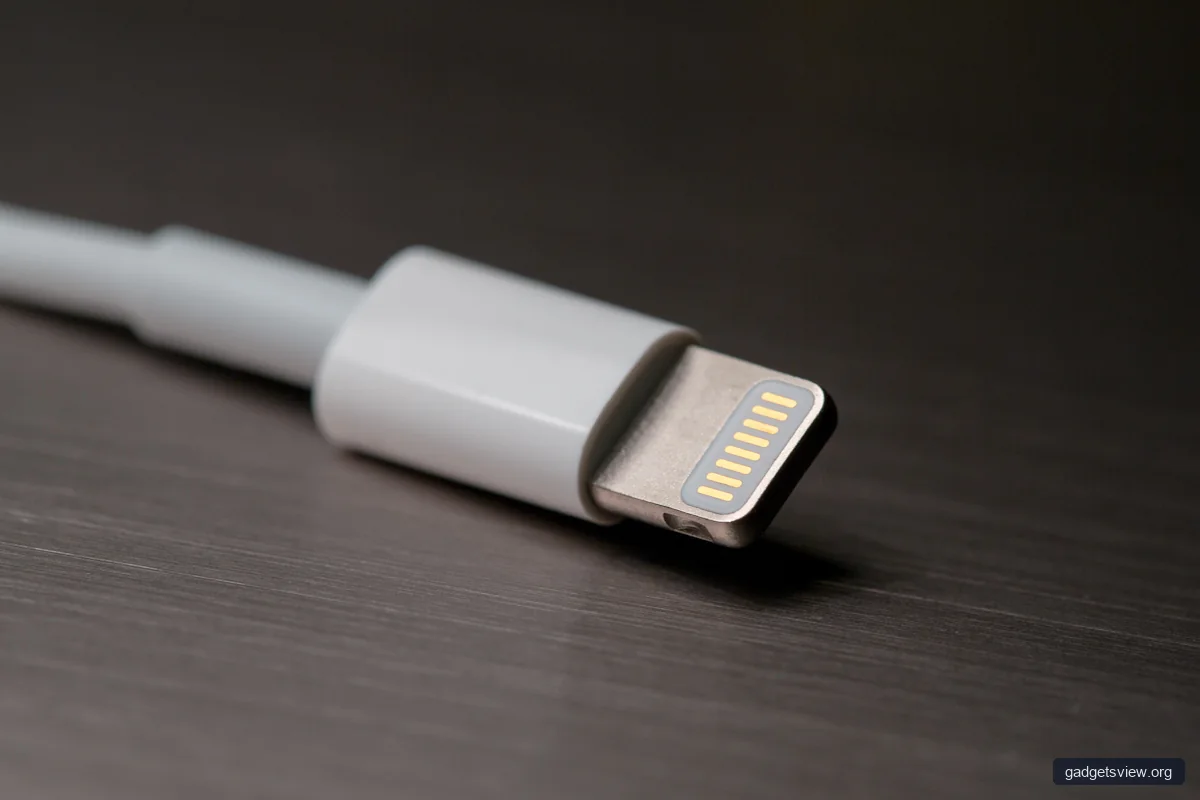
USB-C uses many pins, and not all of them are used the same way in every device or cable. Some pins handle power, some handle data, and some support special functions such as video output. The system is flexible, which is great for compatibility, but it also creates room for misunderstanding.
Here is the simplest way to think about it: the cable and port work together. A device may have a full-featured USB-C port, but if you use a limited cable, you will only get the cable’s lower capability.
Core functions you should know
- Power delivery: Used for charging and powering devices.
- Data lines: Carry files, sync signals, and peripheral communication.
- Configuration pins: Help devices detect orientation and negotiate features.
- Alternate modes: Allow non-USB signals such as display output over USB-C.
That is why USB-C can connect a laptop to a dock, charge a phone, and send video to a monitor. But each use case depends on the correct pin functions being supported on both ends.
USB-C PD, Charging Speed, and What the Cable Must Support
usb c pd stands for USB Power Delivery. It is the charging and power negotiation system that lets devices request the amount of power they need. Without it, many USB-C chargers and devices fall back to basic charging.
For users, the important part is not the acronym. It is the result: a charger, cable, and device must all support compatible power delivery to enable fast, safe charging. If any part is limited, charging performance drops to the lowest common level.
Common charging checks
- Confirm the device supports USB-C charging.
- Check whether the charger supports USB Power Delivery.
- Make sure the cable is rated for the needed power level.
- Verify the port on both sides supports charging, not just data.
One common mistake is assuming any USB-C cable can handle fast charging. That is not always true. Some low-cost cables support power only at lower levels and may also limit data rates.
| Connection Type | Best For | Strengths | Limitations |
|---|---|---|---|
| USB-C with USB Power Delivery | Fast charging laptops, tablets, and phones | Negotiates power safely; widely used in modern office gear | Requires compatible charger, cable, and device |
| Basic USB-C cable | Simple charging and standard data | Affordable and common | May not support fast charging or high-speed data |
| USB-C with alternate mode | Video output and docking | Can replace several legacy ports | Not universal; support varies by device |
USB-C vs Older Connectors: What Changes and What Does Not
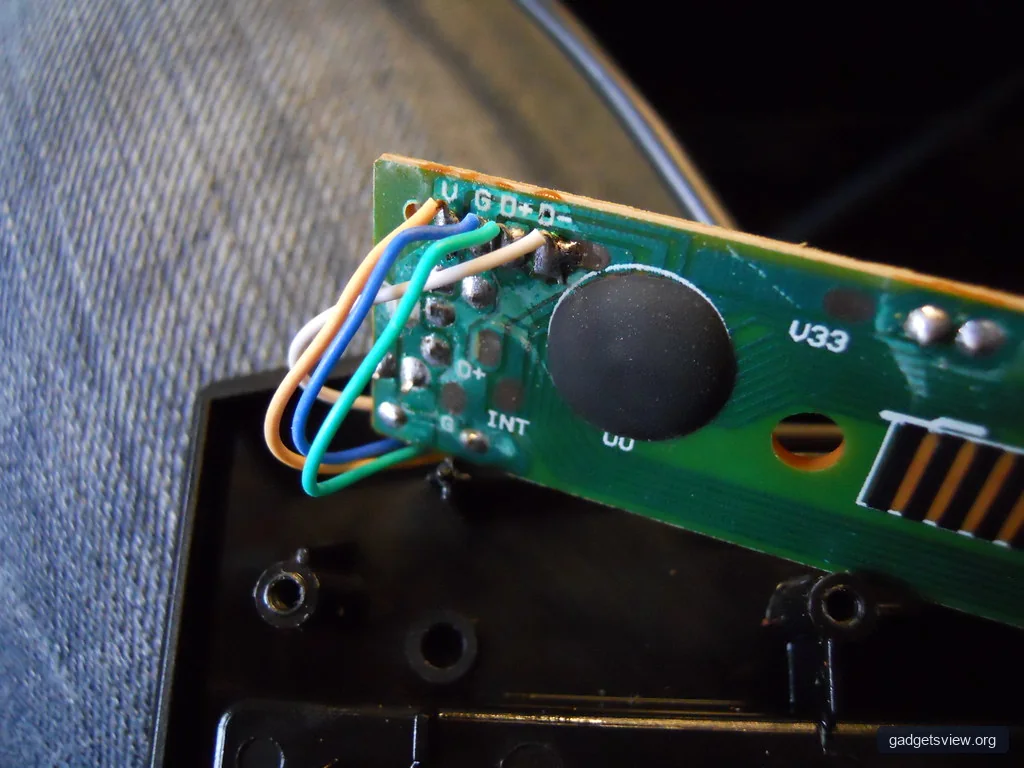
Many people search for micro usb vs type c because the difference is obvious on the outside, but the practical difference is bigger than the plug shape. USB-C is reversible, usually more capable, and better suited to modern power delivery and multi-purpose use. Micro USB is older and often used for slower charging and more limited data support.
The same idea applies to usb a vs usb c. USB-A is the rectangular connector found on many older computers and chargers, while USB-C is smaller, reversible, and more flexible. USB-A is still common for accessories, but USB-C has become the stronger all-around choice for new office equipment.
| Comparison | USB-C | Older Connector |
|---|---|---|
| Micro USB vs Type C | Reversible, more capable, common in new devices | Non-reversible, often limited for charging and data |
| USB A vs USB C | Smaller, reversible, supports modern features | Common legacy port, still widely used for compatibility |
| Mini USB to USB C | Needed for adapters or newer gear | Found on older cameras, audio devices, and peripherals |
Who should choose what? If you are building a new office setup, choose USB-C when possible. If you need to support older devices, keep a few well-labeled adapters and cables for USB-A, micro USB, and mini USB compatibility. For mixed environments, standardizing on USB-C where available reduces clutter and confusion.
Thunderbolt, Display Output, and Adapter Compatibility
Questions like thunderbolt vs usb c come up often because the connectors can look the same. USB-C is the physical connector, while Thunderbolt is a higher-performance protocol that may use the USB-C shape. That means a Thunderbolt port can look like USB-C, but not every USB-C port is Thunderbolt.
This also affects video accessories. A usb c type c to hdmi adapter will only work if the source device supports video over USB-C, usually through DisplayPort alternate mode or Thunderbolt. If the port supports only charging and data, the HDMI adapter will not send a display signal.
Decision guide for office adapters
- Use USB-C to HDMI when the laptop supports video over USB-C and you need a monitor connection.
- Use USB-C to USB-B for printers, scanners, and older peripherals that still rely on USB-B.
- Use Thunderbolt-capable cables only when the device and accessory both require that higher-performance standard.
- Use Thunderbolt 2 to USB-C adapters only when connecting older Thunderbolt 2 gear to newer USB-C-based systems, and verify compatibility carefully.
Compatibility is the biggest risk here. A cable or adapter may physically fit, but that does not guarantee full function. Check the device manual or port symbols before buying new hardware.
How to Read a USB-C Cable or Port Before You Buy
When shopping or troubleshooting, the safest approach is to read the labels first. Look for printed markings on the cable, port icons on the device, and support notes in the manual. If those details are missing, assume the cable may only offer basic capability until you verify otherwise.
Simple inspection checklist
- Look for USB symbols, lightning icons, or display icons near the port.
- Check whether the cable mentions charging, data speed, or video support.
- Confirm that both devices support the same feature set.
- Test with a known good cable if something does not work.
| Problem | Likely Cause | What to Do |
|---|---|---|
| Device charges slowly | No USB-C PD support or low-rated cable | Use a PD-capable charger and compatible cable |
| HDMI adapter shows no signal | Port does not support video output | Verify alternate mode or Thunderbolt support |
| Printer is not detected | Wrong adapter or cable type | Use the correct USB-C to USB-B cable and try another port |
FAQ: Pinout USB C and Common Compatibility Questions
Can I use any USB-C cable for fast charging?
No. Fast charging depends on the cable, charger, and device all supporting the same power standard. A cable that works for basic charging may not support usb c pd or higher power levels.
Is Thunderbolt the same as USB-C?
No. Thunderbolt vs USB-C is a common source of confusion. USB-C is the connector shape, while Thunderbolt is a protocol that may use that connector. A Thunderbolt device often works with USB-C accessories, but feature support is not always identical.
Will a USB-C to HDMI adapter work with every laptop?
No. A usb c type c to hdmi adapter only works if the USB-C port supports video output. Check for DisplayPort alternate mode, Thunderbolt, or vendor documentation before buying.
Can I connect old devices with USB-C adapters?
Often yes, but only if the adapter matches the older device’s port type. Common cases include usb c to usb b for printers and mini usb to usb c for legacy peripherals. Always verify the device side first.
What should I do if my USB-C device is not working?
Start with the cable. Try a known good cable, then confirm the port supports the feature you need, whether that is charging, data, or display output. If the problem continues, check the device settings and the owner’s manual.
Conclusion: Choose the Right USB-C Path for the Job
USB-C is powerful because one connector can handle charging, data, and even video. But the real story is in the pinout usb c and the feature support behind it. Before buying a cable or adapter, match the port, cable, and device to the job you want done.
For best results, keep USB-C PD cables for charging, use verified video-capable adapters for displays, and keep a small set of legacy adapters for older office hardware. When in doubt, check the manual first and choose the simplest compatible setup.