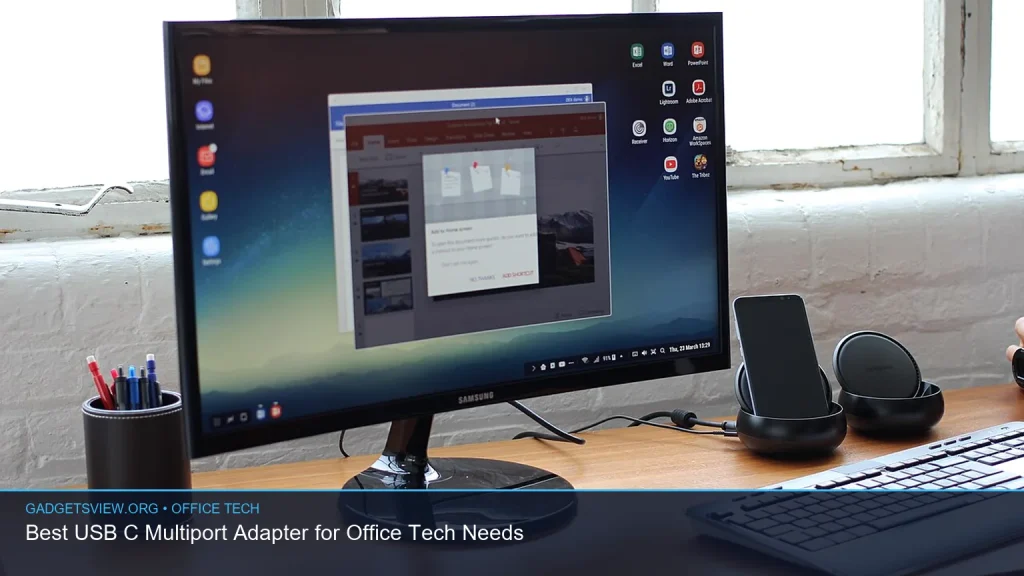
If you need one accessory that can handle displays, internet, charging, and legacy ports, a usb c multiport adapter is often the smartest office upgrade. The best choice depends on your laptop, monitor setup, network needs, and whether you still rely on USB-A devices or Ethernet. In this guide, you’ll learn what matters most, how to compare options, and which type of adapter fits common office tech setups. If you work at a desk, move between meeting rooms, or dock a laptop daily, this will help you choose with confidence.
📖 Table of Contents
- What a USB-C Multiport Adapter Should Do for Office Work
- How to Choose the Right USB-C Multiport Adapter
- Best Port Combinations for Common Office Setups
- When to Choose Dual HDMI, Ethernet, or Legacy USB-A Support
- How MacBook Air Users Should Think About a USB-C Hub
- Simple Setup Tips and Common Problems
- FAQ
- Conclusion
📌 Key Takeaways
- A good USB-C multiport adapter should match your display, charging, and data needs first, not just add ports.
- If you use two monitors, look for a usb c to dual hdmi adapter or a hub with clear dual-display support for your laptop.
- If office Wi-Fi is weak or unstable, a usb c ethernet adapter can be more reliable than wireless connections.
- For MacBook Air users, a usb c hub for macbook air should be chosen carefully because some models have display and power limits.
What a USB-C Multiport Adapter Should Do for Office Work
A USB-C multiport adapter is built to turn one USB-C port into several useful connections. In an office, that usually means external displays, Ethernet, USB-A accessories, SD card access, and charging. The right model can replace a pile of dongles and make a laptop feel much closer to a full desktop setup.
The best adapter is not the one with the most ports. It is the one that fits your daily workflow without creating bottlenecks, overheating, or display limits. That means checking what your laptop can actually support before you buy.
Common office uses to plan for
- Connecting one or two external monitors
- Using wired internet for stable video calls and file access
- Plugging in keyboards, mice, printers, and flash drives
- Charging the laptop while everything is connected
- Accessing SD or microSD cards for content, reports, or media
How to Choose the Right USB-C Multiport Adapter
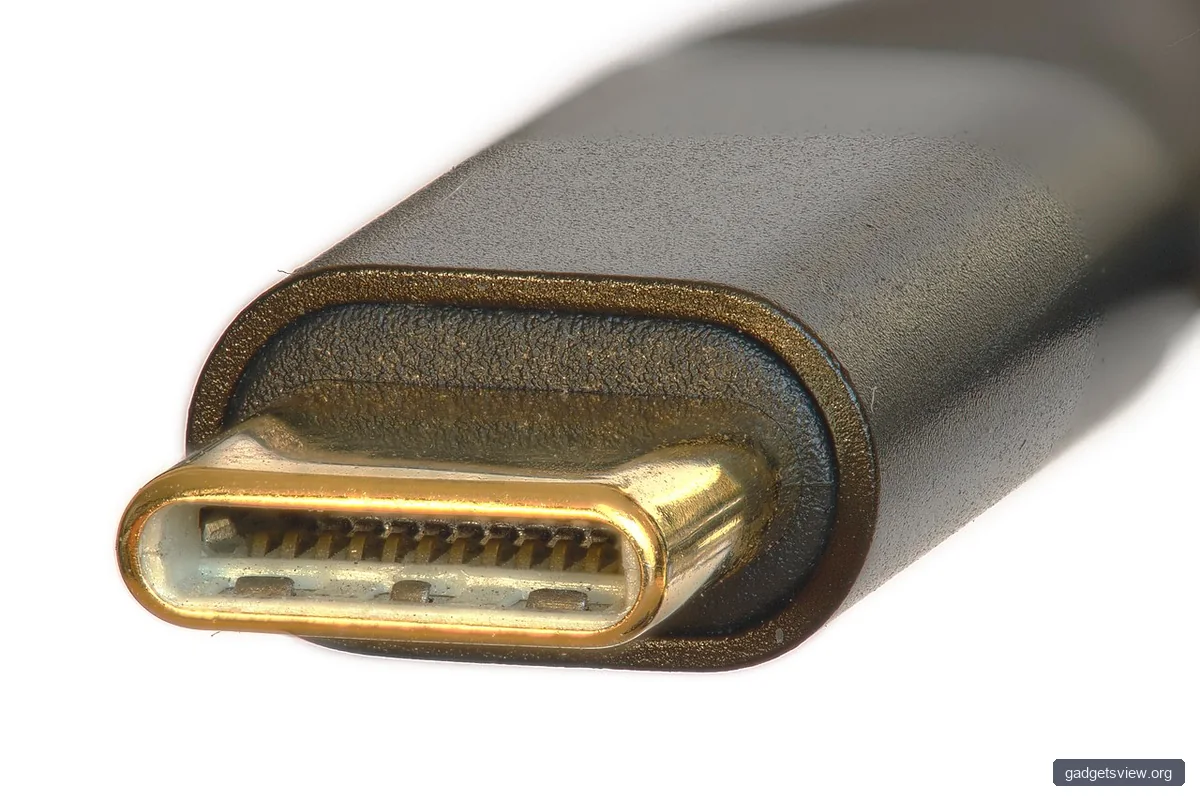
Start with your daily tasks. If you only need a monitor and a mouse, a simple hub may be enough. If you dock every day and connect several devices at once, look for stronger power delivery, stable data ports, and a design made for longer use.
Compatibility matters more than looks. A USB-C port can carry video, data, and power, but not every laptop uses all of those functions the same way. Check your laptop’s support for display output, charging, and any limit on the number of external monitors.
Selection criteria that matter most
- Display support: Single or dual monitor output, plus the resolution your laptop can handle
- Power delivery: Enough pass-through charging for your laptop while the hub is in use
- USB-A ports: Useful for older office peripherals and storage drives
- Ethernet port: Helpful if you want a wired, more stable connection
- Build quality: A sturdier cable and housing can matter in daily desk use
- Port layout: Ports should be easy to reach, especially in cramped workstations
Best Port Combinations for Common Office Setups
Different jobs call for different port mixes. A sales or operations user may want Ethernet and one display. A designer or analyst may need two monitors and several USB ports. A hybrid worker may need a compact hub that can move between home and office.
Below is a practical way to compare common adapter styles before you narrow your choices.
| Adapter Type | Best For | Strengths | Limitations |
|---|---|---|---|
| USB-C hub with HDMI and USB-A | Basic office desks | Simple, compact, easy to carry | May lack Ethernet or dual display support |
| USB-C to dual HDMI adapter | Two-monitor setups | Better screen space for multitasking | Needs laptop support for dual displays |
| USB-C hub with Ethernet | Remote work, video calls | Stable wired networking | May not include enough display ports |
| USB-C hub for MacBook Air | Mac users | Can add needed office ports in a compact form | Must be checked against Mac model limits |
When to Choose Dual HDMI, Ethernet, or Legacy USB-A Support
The best answer depends on what slows you down most. If your work is monitor-heavy, a usb c to dual hdmi adapter is the most useful place to start. If your office network is inconsistent, prioritize a usb c ethernet adapter instead.
Many users still need at least one usb c to usb a adapter function because printers, thumb drives, keyboards, and conference room accessories are still common. That makes USB-A support a practical feature, not an outdated extra.
Who should choose what
- Choose dual HDMI if you regularly compare documents, spreadsheets, dashboards, or creative work across two screens.
- Choose Ethernet if you attend video meetings often, transfer large files, or need reliable access to office systems.
- Choose USB-A ports if you still connect older accessories or shared office devices.
- Choose a compact all-in-one hub if you split time between desk work and travel.
How MacBook Air Users Should Think About a USB-C Hub
A usb c hub for macbook air can be a great office tool, but it should be chosen with care. Apple laptop models may differ in external display support, charging behavior, and port limits. Before buying, confirm what your exact MacBook Air model can do with one or more external monitors.
For many Mac users, the right hub is the one that keeps the desk clean while still covering the basics: power, external display, USB-A, and possibly Ethernet. If your work depends on multiple screens, make sure the adapter is compatible with your model rather than assuming all USB-C hubs behave the same way.
Helpful checks before you buy for a MacBook Air
- Confirm your MacBook Air model year
- Check external display support in Apple’s official specs
- Verify whether the hub supports pass-through charging
- Make sure the ports you need are included, not just listed in the product title
Simple Setup Tips and Common Problems
Once you have the right adapter, setup is usually simple. Still, a few common issues can make the experience frustrating if you skip the basics. Start with the most important connection first, then add the rest one at a time.
If something does not work, isolate the problem before assuming the hub is faulty. A monitor cable, laptop setting, or power issue is often the real cause.
- Connect the adapter directly to the laptop, not through another dongle.
- Plug in power delivery first if the hub supports charging.
- Connect one monitor and test it before adding the second screen.
- Add Ethernet, USB-A devices, and storage last.
- Restart the laptop if displays or network devices are not detected.
| Problem | Likely Cause | What to Try |
|---|---|---|
| External monitor not detected | Cable, port, or laptop display limit | Check the monitor input, swap cables, and confirm laptop support |
| Slow file transfer | USB port speed or device limit | Use the fastest available port and test with another drive |
| Laptop not charging | Insufficient power delivery or weak charger | Use a compatible charger and verify the hub supports pass-through power |
| Ethernet disconnects | Loose cable or network issue | Reseat the cable and test another network port |
FAQ
Do I need a USB-C multiport adapter if my laptop already has several ports?
Maybe not. If your laptop already has the display, network, and USB connections you use every day, a hub may be unnecessary. But many slim laptops have limited ports, so a multiport adapter is often the easiest way to build a complete office setup.
Is a USB-C hub better than separate adapters?
For most office users, yes. A single hub is cleaner, easier to move, and usually more practical than carrying separate dongles for HDMI, Ethernet, and USB-A. Separate adapters can still make sense if you only need one function and want the simplest setup possible.
Will a USB-C to dual HDMI adapter work with any laptop?
No. Dual display support depends on the laptop, operating system, and hub design. Before buying, confirm that your laptop can output to two external displays through USB-C.
What should I look for in a USB-C ethernet adapter?
Look for compatibility with your operating system, a secure port fit, and support for the wired speed your office network can use. If you work from home or join many video meetings, Ethernet is often worth prioritizing for stability.
Can one adapter handle a MacBook Air and a Windows laptop?
Sometimes yes, but only if the hub is broadly compatible with both systems. The display behavior may still differ by device, so check the exact laptop model and operating system support before assuming the same results on both machines.
Conclusion
The best usb c multiport adapter for office tech needs is the one that matches your real workflow. Start with your most important use case, whether that is dual monitors, Ethernet, USB-A devices, or MacBook compatibility. Then confirm the laptop’s limits before you buy.
If you want the safest choice, focus on function first and extras second. That approach will help you pick a hub that works well on day one and keeps your desk setup simple over time.