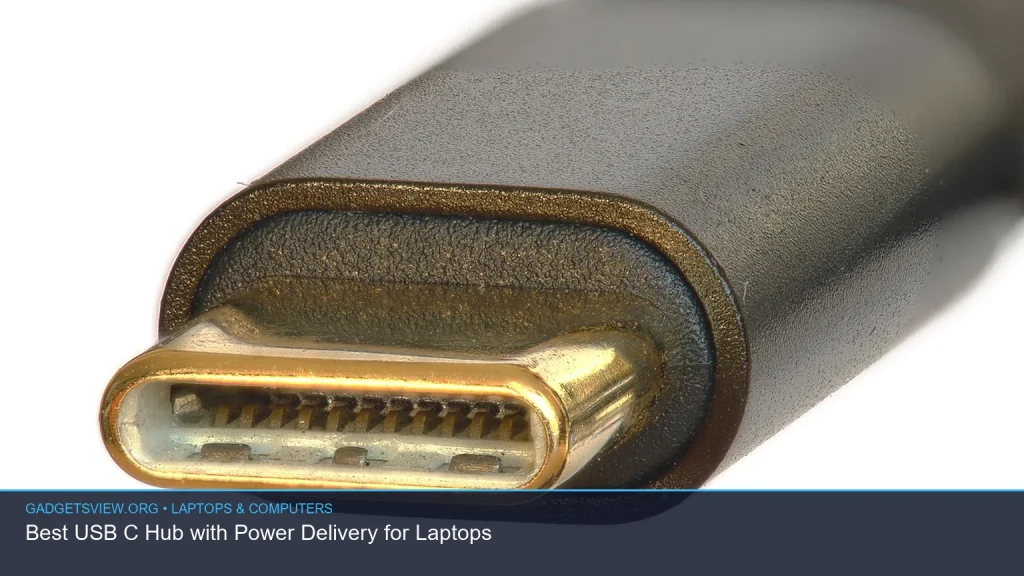
If you need a usb c hub with power delivery for your laptop, the best choice is the one that matches your ports, charging needs, and daily workflow. A good hub should let you charge your laptop, connect displays and accessories, and keep your desk setup simple. The right pick depends on whether you need more USB-A ports, HDMI output, Ethernet, SD card slots, or just a compact travel hub. Below, we break down what matters most so you can choose with confidence.
📖 Table of Contents
- What a USB C Hub with Power Delivery Actually Does
- How to Choose the Right USB C Hub with Power Delivery
- Comparison Table: What to Look For in a USB C Hub with Power Delivery
- Strengths and Limitations to Expect
- Who Should Choose What
- How to Set Up and Use It the Right Way
- Troubleshooting Common USB C Hub Problems
- FAQ
- Conclusion
📌 Key Takeaways
- A usb c hub with power delivery lets you charge your laptop while using extra ports, which is ideal for desks and travel.
- Look first at PD wattage, display support, and the exact ports you need for your laptop and accessories.
- Not every hub supports full laptop charging or high-resolution external displays, so check compatibility before buying.
- For the best value, choose a hub that fits your real setup instead of paying for ports you will not use.
What a USB C Hub with Power Delivery Actually Does
A usb c hub with power delivery expands one USB-C port into several useful connections while also passing charging power through the hub. That means you can plug in a charger, external monitor, keyboard, mouse, SSD, and other devices from a single laptop port.
This setup is especially useful for thin laptops that have limited ports. It can turn a basic mobile machine into a more capable workstation without forcing you to carry a separate dock for every task.
How to Choose the Right USB C Hub with Power Delivery

The best hub is not always the one with the most ports. It is the one that matches your laptop’s charging and data needs, plus the accessories you use every day.
1. Check the Power Delivery wattage
Power delivery is the feature that lets the hub pass charger power to your laptop. Some laptops need more wattage than others, so make sure the hub can support enough input for your model. If the wattage is too low, your laptop may charge slowly or not keep up under heavy use.
2. Confirm display support
If you want to connect an external monitor, check whether the hub supports HDMI, DisplayPort, or USB-C video output. Also verify the maximum resolution and refresh rate supported by both the hub and your laptop. This matters a lot for office work, creative tasks, and dual-screen setups.
3. Match the ports to your workflow
Think about what you actually plug in. Some users need SD card readers and Ethernet. Others need only USB-A ports, one monitor output, and a charging pass-through. A hub that fits your routine is usually a better buy than a larger unit with features you will never use.
4. Watch for laptop compatibility
Not every USB-C port behaves the same. Some laptops support charging, some support video output, and some support both. Before buying, confirm your laptop’s USB-C port supports the functions you need. If current compatibility details are unclear, verify them with the laptop maker’s support page.
Comparison Table: What to Look For in a USB C Hub with Power Delivery
| Buying Factor | Why It Matters | What to Check |
|---|---|---|
| Power Delivery Wattage | Determines whether the hub can charge your laptop properly | Hub PD input/output support and your laptop’s charging needs |
| Video Output | Needed for external monitors and larger workspaces | HDMI or DisplayPort support, resolution, refresh rate |
| USB Data Ports | Supports mice, keyboards, drives, and other accessories | USB-A, USB-C data, and any speed claims the maker provides |
| Ethernet and Card Readers | Useful for stable internet and media transfer | RJ-45 port, SD or microSD slot, transfer convenience |
| Build and Size | Affects portability, heat, and desk comfort | Cable length, shell material, compactness, thermal design |
Strengths and Limitations to Expect
A usb c hub with power delivery offers clear convenience. It cuts cable clutter, supports cleaner desk setups, and makes it easy to charge and connect at the same time. For many laptop users, that is the main reason to buy one.
Still, hubs have limits. Some models can reduce display performance, may not pass enough wattage for power-hungry laptops, or can behave differently depending on the USB-C port used. If you need many peripherals, dual monitors, or workstation-level expansion, a full dock may be a better fit than a small hub.
Common strengths
- Charges the laptop while leaving the USB-C port free for expansion.
- Reduces the number of separate adapters and dongles.
- Works well for home offices, classrooms, and travel.
- Often supports the most common everyday ports in one compact device.
Common limitations
- May not deliver full charging power for every laptop.
- Can have limited monitor support compared with larger docks.
- Performance may depend on the laptop’s USB-C feature set.
- Some hubs get warm under load, especially when several devices are connected.
Who Should Choose What
If you are mostly charging your laptop and connecting a few accessories, a compact hub is usually the simplest answer. If you use a monitor, keyboard, mouse, and storage drive every day, choose a hub with the right mix of video and data ports.
| User Type | Best Choice | Why |
|---|---|---|
| Travel-focused users | Compact hub with charging pass-through and a few essential ports | Small, light, and easy to pack |
| Home office users | Hub with HDMI, USB-A, Ethernet, and strong PD support | Covers daily desk needs in one device |
| Students | Affordable, practical hub with charging and basic connectivity | Good balance of utility and simplicity |
| Power users | More capable dock or advanced hub with stronger port variety | Better for multiple devices and heavier workloads |
How to Set Up and Use It the Right Way
Once you buy a hub, proper setup helps avoid weak charging, display issues, and flaky connections. Start with the laptop’s main USB-C port that supports charging and video, if your device has more than one.
- Connect the hub to the laptop’s compatible USB-C port.
- Plug your charger into the hub’s power delivery input.
- Connect your monitor, keyboard, mouse, and storage devices.
- Test charging first, then check each accessory one at a time.
- If the display does not appear, try another cable or verify the laptop’s video support.
Keep cable management simple and avoid stacking too many high-power devices on one hub if the system feels unstable. If you notice disconnects, heat, or reduced charging, unplug one accessory at a time to identify the cause.
Troubleshooting Common USB C Hub Problems
Most issues come from compatibility, not necessarily a bad hub. A quick check of the laptop port, charger wattage, and display settings often solves the problem.
| Problem | Likely Cause | What to Try |
|---|---|---|
| Laptop not charging | Wrong port, weak charger, or unsupported PD setup | Check the laptop port and confirm charger and hub compatibility |
| Monitor not detected | Video output not supported or cable issue | Use a known-good cable and verify display support |
| Accessories disconnect | Power strain or hub overload | Reduce connected devices and test again |
| Slow file transfers | Port speed limits or shared bandwidth | Move storage devices to faster ports if available |
FAQ
Does every USB-C hub support laptop charging?
No. Some hubs support only data and video, while others support power delivery passthrough. Always confirm that the hub supports charging and that your laptop’s USB-C port can accept power through that connection.
Can I use a USB C hub with power delivery and a monitor at the same time?
Often yes, but it depends on the hub and laptop. Check whether the hub supports video output and whether your laptop allows display output over that USB-C port.
Will a hub charge my laptop as fast as the original charger?
Not always. Charging speed depends on the hub’s supported PD wattage, the charger you use, and your laptop’s own power needs. For best results, match the charger and hub to your laptop’s requirements.
Do I need a hub or a dock?
Choose a hub if you want portability and a few key ports. Choose a dock if you want a more permanent workstation setup with more connections and stronger expansion options.
How do I know if my laptop is compatible?
Check the laptop maker’s support documentation for USB-C charging and video output details. If the information is unclear, verify it before you buy so you do not end up with a hub that only partly works.
Conclusion
The best usb c hub with power delivery is the one that fits your laptop, your charger, and your daily setup. Focus on PD wattage, display support, and the ports you actually need, then choose the simplest model that covers those jobs well.
If you are ready to buy, compare your laptop’s USB-C capabilities with the hub’s feature list first. That one step can save you from slow charging, missing video output, and avoidable compatibility issues.