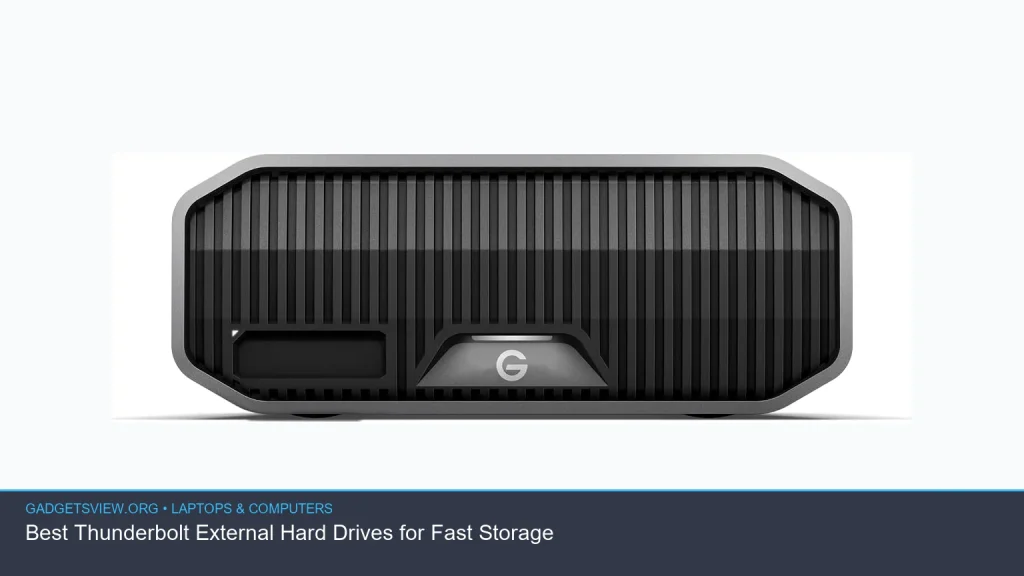
If you need fast, reliable storage for large files, a thunderbolt external hard drive can be a smart buy. It offers a strong mix of speed, plug-and-play ease, and workflow-friendly performance for creative work, backups, and heavy file transfers. The best choice depends on how you use your laptop or desktop, what ports you have, and whether you need raw speed, bigger capacity, or a balance of both. This guide explains what to look for, where Thunderbolt helps most, and how to choose the right drive with confidence.
📖 Table of Contents
📌 Key Takeaways
- Thunderbolt drives are best for fast file transfers, scratch use, and demanding workflows like video editing.
- Pick the right drive by checking port compatibility, real-world speed needs, and the type of storage inside the enclosure.
- For many users, a Thunderbolt SSD is faster; for more capacity at a lower cost, a Thunderbolt HDD may make sense.
- Verify your laptop or desktop has the right Thunderbolt port before you buy, since USB-C and Thunderbolt are not always the same.
What a Thunderbolt External Hard Drive Is
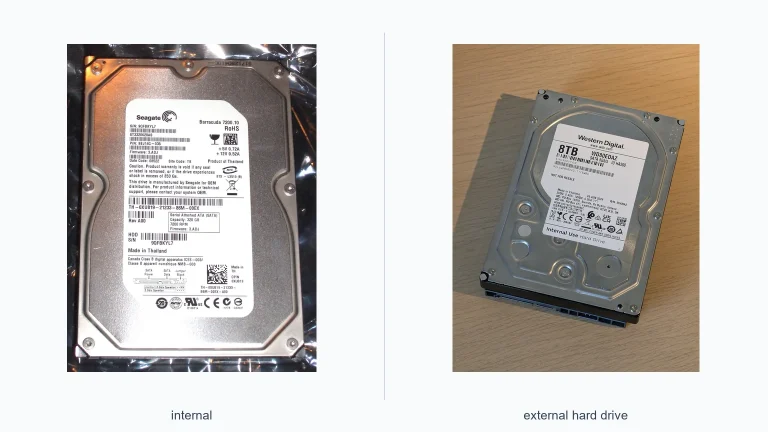
A thunderbolt external hard drive connects through the Thunderbolt standard, which is designed for very fast data transfer and low-latency performance. It can be a traditional hard drive or, more often for speed-focused buyers, an SSD in an external enclosure. The key benefit is not just storage, but smoother handling of large files, project folders, and backup jobs.
Thunderbolt is especially useful if you move big videos, photo libraries, game installs, or work files between devices. It is also a strong option for people who want external storage that feels closer to internal drive performance. That said, the exact speed you get depends on the drive type, enclosure, cable, and computer port support.
Who Should Buy Thunderbolt Storage?

Thunderbolt storage is not for everyone, but it is a good fit for certain buyers. If you often wait on large copies, work with high-resolution media, or need fast access to project files, the upgrade can be worth it. It is also appealing if you want one drive that can keep up with a modern laptop without creating a bottleneck.
For casual document storage, photo backups, or simple file transport, a standard USB external drive may be enough. Thunderbolt makes the most sense when speed saves time or reduces frustration on a regular basis. In other words, buy for your workflow, not just for the label.
Best for these users
- Video editors moving large project files
- Photographers working with big RAW libraries
- Developers or creators who need fast local project storage
- Anyone who regularly backs up large amounts of data
- Users who want a premium external drive for a Thunderbolt-equipped laptop
Thunderbolt External Hard Drive vs USB External Drive
When people compare external storage, the real question is often Thunderbolt versus USB. Both can work well, but they serve different needs. Thunderbolt is built for higher performance, while USB drives tend to be cheaper and more widely compatible.
If you are choosing between the two, think about how often you work with large files. A USB drive may be fine for everyday backups. A Thunderbolt drive becomes more compelling when speed and smooth performance matter on a daily basis.
| Factor | Thunderbolt External Drive | USB External Drive |
|---|---|---|
| Speed potential | Typically higher, especially with SSDs | Good, but usually lower |
| Best use | Creative work, large file transfers, fast storage | Backups, general storage, casual use |
| Compatibility | Requires Thunderbolt support | Works with many devices |
| Cost | Usually higher | Usually lower |
How to Choose the Right Drive
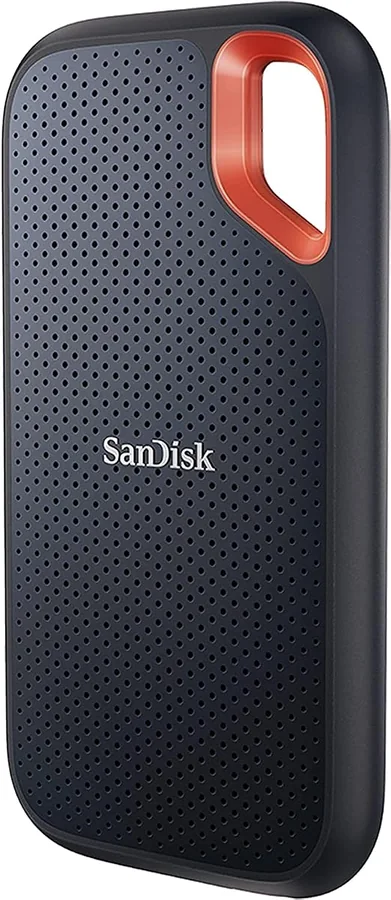
Since no specific product list is included here, the smartest way to shop is by features. The right drive should fit your device, your budget, and your workflow. If you rush the purchase, you can end up with a drive that is too slow, too small, or not fully compatible.
Start by checking the port on your laptop or desktop. Thunderbolt ports often use the USB-C shape, but not every USB-C port supports Thunderbolt. That detail matters because the cable may fit even when the higher Thunderbolt speeds do not.
Selection criteria that matter most
- Port compatibility: Confirm your computer supports Thunderbolt, not just USB-C.
- Drive type: SSDs are faster; HDDs usually offer more capacity for the money.
- Capacity needs: Choose enough space for current files plus future growth.
- Workflow speed: Match the drive to your real work, not peak spec claims.
- Build quality: Portable drives should handle travel and daily plugging.
- Thermals: Faster drives may need better cooling to hold performance during long transfers.
Strengths and Limitations to Know
Thunderbolt drives have clear strengths, but they are not perfect. They can deliver excellent performance, yet that performance comes with some trade-offs. Understanding both sides helps you avoid overspending on features you may not use.
The biggest strength is speed. The biggest limitation is that you only get the benefit if your computer, cable, and drive are all built to support it. If one piece is slower, the whole setup can be held back.
Strengths
- Fast transfers for large files and project folders
- Good fit for demanding creative workflows
- Excellent for external scratch or working storage
- Often a cleaner setup than juggling multiple smaller drives
Limitations
- Higher cost than many standard USB drives
- Requires Thunderbolt support to shine
- Portable performance can vary by enclosure and cooling
- Some buyers may not notice a big benefit for basic use
Who Should Choose What?
If you are still deciding, use your use case as the final filter. A Thunderbolt SSD is the best choice for people who value top speed and work with large files often. A Thunderbolt HDD may appeal to users who want more storage and can accept slower performance.
For most casual users, a standard external drive is enough. For creators, power users, and anyone who moves huge files every week, Thunderbolt can be a meaningful upgrade. The best choice is the one that fits your work without wasting money on unused speed.
| Buyer Type | Best Fit | Why |
|---|---|---|
| Video editor | Thunderbolt SSD | Fast access and quick project transfers |
| Photographer | Thunderbolt SSD or high-capacity HDD | Balances speed and storage volume |
| General laptop user | USB external drive | Usually enough for backups and documents |
| Power user on a Thunderbolt laptop | Thunderbolt external hard drive | Best match for the hardware and workflow |
Buying Tips Before You Check Out
Before you buy, verify three things: your computer’s port support, the drive’s type, and the size you actually need. If you are not sure whether your machine supports Thunderbolt, check the manufacturer’s specs for your exact model. That small step can prevent a costly mismatch.
Also think about your long-term storage needs. Many buyers outgrow small capacities faster than expected, especially if they work with 4K video, large game libraries, or big photo archives. A slightly larger drive can be a better value than buying a second drive later.
FAQ
Is a Thunderbolt external hard drive faster than USB?
Usually, yes. Thunderbolt is designed for higher performance, especially when paired with a fast SSD. But the real-world result depends on your computer, cable, and the drive itself.
Do I need Thunderbolt to use a Thunderbolt drive?
Yes, to get the full speed benefit. Many Thunderbolt drives may still work over a USB-C connection in some cases, but performance can drop. Check the manufacturer’s compatibility notes before buying.
Is an SSD better than an HDD for Thunderbolt storage?
For speed, yes. An SSD is usually the better match for Thunderbolt because it can take fuller advantage of the connection. An HDD may still be useful if your main goal is larger, lower-cost storage.
Can I use a Thunderbolt drive for backups?
Yes. Thunderbolt drives can work very well for backups, especially if you back up large files or want faster backup times. For simple scheduled backups, a standard drive may also be enough.
What should I check before buying one?
Check Thunderbolt support on your computer, the drive type, the storage capacity, and the cable included in the box. If you want maximum speed, make sure every part of the setup supports Thunderbolt, not just the drive name.
Conclusion
The best thunderbolt external hard drive is the one that matches your device and your daily work. If you need fast transfers, smooth file access, and a strong fit for creative tasks, Thunderbolt can be a smart upgrade. If your needs are more basic, a standard USB drive may be enough.
Next, check your port compatibility, decide between SSD and HDD, and choose a capacity that gives you room to grow. That simple process will help you buy storage that feels fast, useful, and worth the cost.