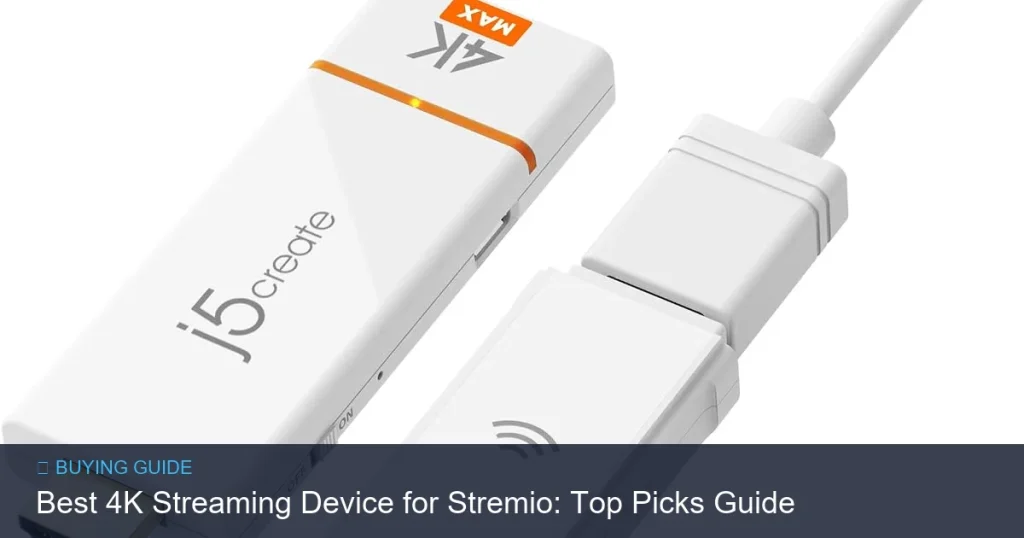
Best 4K Streaming Device for Stremio: Top Picks Guide
If you use Stremio to organize and stream movies, shows, and live channels, picking the right 4K streaming device makes a big difference. Some boxes run Stremio natively, others require sideloading, and a few work best by casting or AirPlay. The wrong device can limit playback quality, add latency, or make setup harder.
📖 Table of Contents
- How Stremio Works and Why 4K Matters
- What to Look For in the Best 4K Streaming Device for Stremio
- Top Picks: Best Device Types and Why They Work with Stremio
- Step-by-Step: Installing Stremio on Popular Devices
- Tips for Getting Smooth 4K Playback with Stremio
- Quick Answers to Common Questions
- Frequently Asked Questions (FAQs)
- Conclusion
This guide breaks down what matters when choosing the best 4k streaming device for stremio. You’ll get clear buying criteria, recommended device types, step-by-step setup options, and practical tips to get smooth 4K playback at home.
📌 Key Takeaways
- Android TV / Google TV devices are typically the easiest way to run Stremio natively or by sideloading.
- If you prefer casting, choose a device with robust Chromecast or AirPlay support for smooth 4K delivery.
- Network quality, HDMI connection, and app updates matter more than raw box power for reliable 4K playback.
- Roku and Apple TV have limited or no native Stremio support; they work best with casting or mirroring alternatives.
How Stremio Works and Why 4K Matters
What Stremio does
Stremio is a streaming aggregator that organizes content from add-ons and services. It acts as a central app for libraries, streams, and addons. The app itself is a launcher and player for content links rather than a traditional store-based streaming platform.
Why choosing a 4K-capable device is worth it
When you have a fast internet connection and 4K source files, a capable streaming device preserves picture quality, supports HDR when available, and keeps frame rates stable. The right device can also reduce buffering and improve subtitle and audio sync.
What to Look For in the Best 4K Streaming Device for Stremio
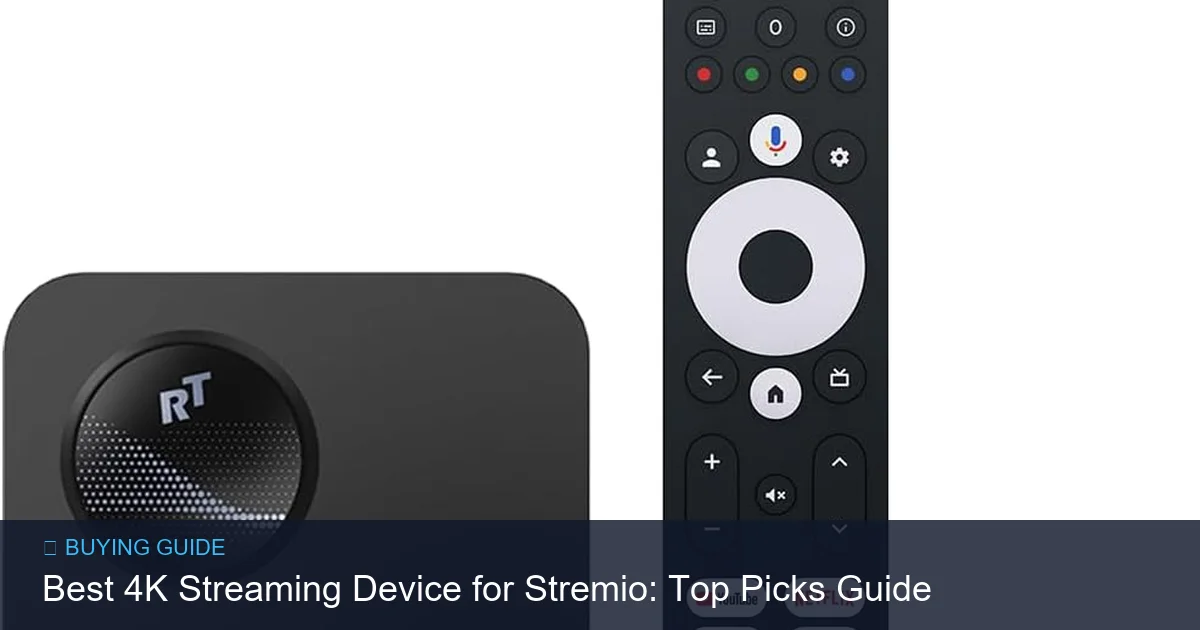
Visual breakdown for best 4k streaming device for stremio
Software compatibility and app support
Prefer devices that run Android TV / Google TV if you want an easy Stremio install. Check whether the device allows sideloading of Android APKs. If a device lacks native support, confirm if you can cast from a Stremio desktop or mobile app.
Connectivity and network
For 4K streams, a stable wired Ethernet connection is ideal. If you rely on Wi‑Fi, pick a device that supports modern Wi‑Fi standards and has a good antenna design. Bluetooth is handy for remotes and headphones, but it won’t affect stream quality.
Remote control, interface, and extras
Look for a responsive remote and an interface you like. Voice search and quick access buttons speed navigation. Also consider storage and ports if you plan to sideload apps or use external drives.
Top Picks: Best Device Types and Why They Work with Stremio
Android TV / Google TV boxes (best for native/sideload)
Android TV and Google TV devices often let you install Stremio from the Play Store or sideload the APK. That gives native playback, access to local network storage, and the smoothest integration for add-ons and subtitles.
Amazon Fire TV 4K devices (good with sideloading)
Fire TV runs Fire OS, which can install Android APKs through sideloading. That makes Fire TV a practical choice if you’re comfortable enabling installs from unknown sources and using a sideload installer.
Chromecast with Google TV (casting and native app)
Chromecast with Google TV blends casting and native app support. It runs Google TV (Android-based), which allows sideloading and offers the convenience of casting from a phone or laptop when needed.
Apple TV and Roku (works best via casting/mirroring)
Apple TV and Roku do not have a native Stremio app. You can use AirPlay or casting/mirroring from a phone, tablet, or computer. That approach is fine for casual viewing but adds a device dependency for playback.
| Device Type | Native Stremio Support | Sideloading Ease | 4K Support | Pros | Cons |
|---|---|---|---|---|---|
| Android TV / Google TV | Yes (Play Store or APK) | Easy | Yes | Native app, flexible, good sideloading | App compatibility varies by vendor |
| Amazon Fire TV (4K) | No (but APK works) | Moderate | Yes | Widely available, good ecosystem | Requires sideload for Stremio |
| Chromecast with Google TV | Yes (often) | Easy | Yes | Great casting support, compact | Limited ports on small dongles |
| Apple TV / Roku | No | Not applicable | Yes | Smooth UI, robust ecosystems | No native Stremio; requires casting |
Step-by-Step: Installing Stremio on Popular Devices
Android TV / Google TV
- Open the Play Store on the device and search for Stremio. If it appears, install it.
- If it doesn’t appear, enable sideloading in Settings, transfer the APK via USB or network, and install with a file manager.
- Sign in to your Stremio account and configure add-ons and playback preferences.
Amazon Fire TV
- Enable apps from unknown sources in Developer Options.
- Use an APK downloader app or transfer the Stremio APK from another device, then install.
- Pin the app to the home screen and confirm playback settings.
Casting / AirPlay to Apple TV or Roku
- Open Stremio on your phone or computer and start the content.
- Use Cast (Chromecast) or AirPlay (Apple devices) to send video to the TV device.
- Keep the source device powered and on the same network while casting.
Tips for Getting Smooth 4K Playback with Stremio
Optimize your network
Use wired Ethernet for best stability. If Wi‑Fi is the only option, place the router close to the streaming device and use the 5 GHz band when possible.
Manage add-ons and sources
Choose high-quality addons and avoid mixes of low-bitrate links. Some add-ons provide multiple stream options; pick the highest quality only if your network supports it.
Use external storage for heavy use
If you sideload many apps or download large subs, plug in a USB drive or use networked storage. That helps keep the device responsive and avoids slowdowns.
Respect legal and privacy considerations
Verify that streams are legal in your region. If you use a VPN for privacy, choose one that supports streaming and has minimal impact on bandwidth.
Quick Answers to Common Questions
Is Stremio available on Apple TV?
No. There’s no native Stremio app for Apple TV. Use AirPlay from iOS/macOS or run Stremio on another device and cast to the TV.
Can I sideload Stremio on Fire TV?
Yes. Fire TV supports sideloading Android APKs. You’ll need to enable installations from unknown sources and transfer the APK to the device.
Do I need a powerful box for 4K Stremio streams?
Not necessarily. Smooth 4K playback depends mostly on network stability and codec support. A modern midrange streaming device with 4K support is typically sufficient.
Will casting reduce video quality?
Casting can maintain high quality if both the source and receiver support the required codecs and you have good bandwidth. Some casting methods may re-encode, so check the device behavior.
Frequently Asked Questions (FAQs)
Which device gives the most straightforward Stremio experience?
Android TV or Google TV devices are generally the most straightforward because they allow native installation or simple sideloading of the Stremio app.
Is a wired connection required for 4K streaming?
Wired Ethernet is recommended for the most stable 4K streams, but a robust 5 GHz Wi‑Fi connection can work well if the router and device are close by.
Can I use Bluetooth headphones with Stremio on a TV device?
Yes. Many streaming devices support Bluetooth audio. Keep in mind that some Bluetooth connections can introduce audio delay with video.
Are there any security risks to sideloading Stremio?
Sideloading any APK carries some risk. Only download Stremio from the official source and verify integrity when possible. Keep your device software up to date.
What if Stremio playback is choppy on 4K files?
Try lowering the stream quality, switch to a wired connection, clear app cache, or restart the device. Also confirm your add-on’s source provides reliable 4K links.
Conclusion
For most people seeking the best 4k streaming device for stremio, Android TV / Google TV boxes and devices that allow APK sideloading provide the simplest, most flexible experience. If you prefer casting from a phone or laptop, Chromecast-based devices and Apple TV work well. Before buying, prioritize network stability and device compatibility with sideloading or casting so Stremio runs smoothly on your setup.
Next step: decide which setup matches your habits (native app vs. casting), then pick a 4K device that supports that workflow and has a reliable network connection for the best playback.