Picking the right device to stream 4K shows and movies to your TV can feel overwhelming. There are many form factors, features, and marketing claims. Yet the core choice comes down to what you watch, how you listen, and how you connect your gear.
📖 Table of Contents
- Why 4K streaming matters for your TV
- How to choose the best 4k streaming device for tv
- Device types and real-world examples
- Comparison table: match features to needs
- Setup, tuning, and performance tips
- Purchase checklist and final buying steps
- Quick answers to common questions
- Frequently Asked Questions
- Conclusion
This guide helps you find the best 4k streaming device for tv without jargon. You’ll get clear criteria, real-world scenarios, setup tips, and a compact comparison so you can pick the device that fits your living room and viewing habits.
📌 Key Takeaways
- Choose a device by use case: streaming-only, gaming, or smart-TV upgrade.
- Prioritize 4K plus HDR support, low-latency streaming, and the app ecosystem you rely on.
- Network quality and TV settings affect picture more than small hardware differences.
- Use the comparison table to match the device type to your living room and budget.
Why 4K streaming matters for your TV
Sharper picture and modern content
4K delivers more pixels than HD, which means a clearer image on large screens. Many new releases and streaming originals are published in 4K. If you want the most detail from those titles, a capable device is needed to decode and play them smoothly.
Beyond resolution: HDR and audio
High Dynamic Range (HDR) improves color and contrast. A 4K stream that also supports HDR can make highlights brighter and shadows more detailed. Audio formats such as surround or object-based sound can add depth on compatible receivers and soundbars.
How to choose the best 4k streaming device for tv

Visual breakdown for best 4k streaming device for tv
Prioritize features, not marketing
- Supported formats: Look for devices that list 4K and HDR (and check which HDR formats are supported).
- App ecosystem: Make sure the streaming services you use are available on the device.
- Remote and voice control: A good remote speeds navigation; voice search can be handy.
- Connectivity: Wi‑Fi reliability or an Ethernet option reduces stuttering. Consider Bluetooth for headphones or controllers.
Match features to your use case
Different users need different strengths. If you want the simplest setup for streaming, a compact stick may be enough. Gamers should prioritize low input lag and controller support. Cord-cutters who use many apps should pick a platform with a wide app library.
Device types and real-world examples
Media sticks and dongles
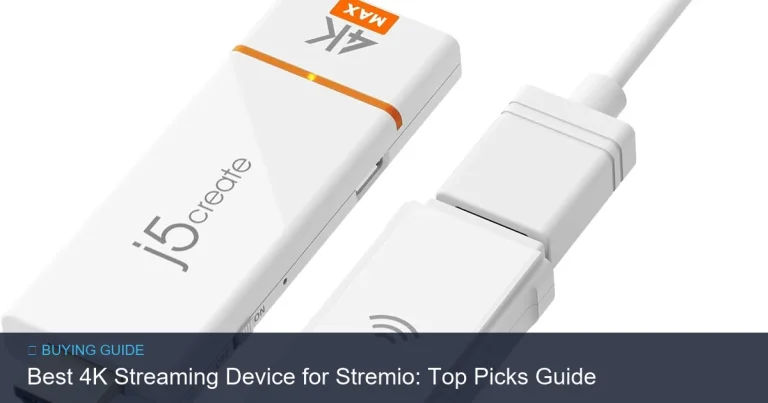
Small, affordable, and easy to move between TVs. They plug directly into an HDMI port and are great for living rooms and bedrooms. Real-world example: a family wanting an uncomplicated upgrade for an older TV often chooses a streaming stick.
Set-top boxes
Offer more processing power, additional ports, and sometimes storage. They sit near your TV and are suited to home theaters and multi-device setups. Use case: a dedicated media room where advanced audio and image tuning matter.
Smart TV platforms vs external devices
Modern smart TVs include built-in streaming apps. An external device can still be better when you want faster updates, a preferred interface, or features missing from your TV’s platform.
Gaming consoles as streaming devices
Consoles can double as high-performance streaming players and handle 4K content. They add gaming features but are larger and usually more costly. Good option when you already own a console and want one device for games and streaming.
Comparison table: match features to needs
| Device type | Best for | 4K/HDR support | Voice remote / Assistant | Pros | Cons |
|---|---|---|---|---|---|
| Media stick / dongle | Simple, portable upgrade | Often supports 4K and HDR | Usually included | Compact, easy to use, affordable | Limited ports, less power for heavy tasks |
| Set-top box | Home theater, advanced audio | Typically strong support | Yes | More power, extra ports, better tunability | Bigger footprint, higher cost |
| Smart TV platform | Minimal clutter | Depends on TV model | Varies | No extra device required | Slower updates, app gaps possible |
| Gaming console | Gaming + streaming | Strong support | Controller voice or built-in mic | High performance, multi-use | Cost and size, power use |
Setup, tuning, and performance tips
Network and router tips
Place your router for a strong Wi‑Fi signal or use Ethernet for stable 4K streams. If multiple devices stream at once, consider quality-of-service settings or a dual-band router to reduce congestion.
TV settings and picture calibration
Enable your TV’s “game” or “low latency” mode only when gaming. For movies and shows, use the TV’s cinema or movie picture mode and turn off unnecessary image processing that can add delay or artificial smoothing.
Troubleshooting common issues
- Buffering: check network and reduce other heavy traffic.
- No HDR: confirm both TV and device report HDR capability and that the app delivers HDR content.
- Audio dropouts: test alternate HDMI ports or use an external audio receiver if available.
Purchase checklist and final buying steps
What to check before you buy
- Confirm the device supports 4K and the HDR formats you want.
- Verify the streaming services you use are available on the platform.
- Make sure the remote and control method suit your household.
- Check connectivity options: Wi‑Fi version, Ethernet, HDMI compatibility with your TV.
Return policies, trials, and when to verify details
Check retailer and manufacturer return windows and trial offers. Technical details and firmware support change over time, so verify current compatibility and features from the manufacturer or retailer before purchase.
Quick answers to common questions
Do I need a dedicated 4K device if my TV is 4K?
Not always. A built-in smart TV may suffice. However, an external device often gives faster updates and a broader app selection.
Will 4K streaming use more internet data?
Yes. Higher resolution and HDR streams carry more data than HD. If you have data caps, monitor usage or choose lower-quality streams when needed.
Can I use a streaming stick with an older TV?
Yes. A streaming stick will work with any TV that has an HDMI port. The device can upscale or play HD content on non-4K screens.
Is a wired connection necessary for 4K?
Wired Ethernet is the most reliable for uninterrupted 4K streaming. High-quality Wi‑Fi can also work if signal strength is strong and network congestion is low.
Frequently Asked Questions
Q: What is the single most important feature to check?
A: Ensure the device explicitly supports 4K and the HDR formats you care about. Without that, you won’t get the full visual benefits even if the device streams smoothly.
Q: Are all 4K streaming devices compatible with every streaming service?
A: No. App availability varies by platform. Before buying, confirm your essential streaming apps are supported on the device’s app store.
Q: Will a better streaming device improve picture on a low-quality TV?
A: It can improve source quality and streaming stability, but it cannot overcome the physical limits of an older panel. Upgrading the TV is the main way to see a big step-up in image quality.
Q: How often do streaming devices receive updates?
A: Update frequency varies by manufacturer and platform. Some receive frequent software and app updates; others may see less frequent support. Check the vendor’s support policy if long-term updates matter.
Q: Can multiple streaming devices be used with one TV?
A: Yes. Many households keep a main device and a secondary stick for another room. Use different HDMI ports or switch with an HDMI switch if ports are limited.
Conclusion
Finding the best 4k streaming device for tv starts with your priorities: portability, performance, or multi-use. Choose a media stick for simple upgrades, a set-top box for advanced home theaters, or a console if gaming matters. Verify 4K and HDR support, confirm the apps you use, and check connectivity options. If you want the fastest route: pick the device type that matches your use case, confirm current compatibility from the manufacturer, and take advantage of return windows to test it at home.