Want better aim in FPS games? The fix is often in your mouse settings, not just your reflexes. Learning how to optimize gaming mouse settings can improve tracking, control, and consistency without buying new gear. The goal is simple: make your mouse feel predictable, comfortable, and tuned to your game. In this guide, you’ll learn the settings that matter most, how to test them, and how to build a setup that supports steady aim.
📖 Table of Contents
- Start With the Settings That Affect Aim the Most
- How to Optimize Gaming Mouse Settings Step by Step
- Turn Off Settings That Hurt Consistency
- Find a Sensitivity That Fits Your Aim Style
- Match Your Mouse Hardware to Your Settings
- Use the Right Grip, Posture, and Mousepad Space
- Troubleshooting Common Aim Problems
- FAQ
- Conclusion
📌 Key Takeaways
- Start with a stable DPI, then fine-tune in-game sensitivity for better precision.
- Turn off mouse acceleration and pointer enhancements for more consistent aim.
- Match your polling rate, grip, and mousepad space to the way you play.
- Test one change at a time so you know what actually improves your control.
Start With the Settings That Affect Aim the Most
If you want better aim, focus on the few settings that directly change how your hand movements turn into crosshair movement. The most important ones are DPI, in-game sensitivity, polling rate, acceleration, and smoothing. These settings shape how fast your cursor moves and how easy it is to make small corrections.
A common mistake is changing everything at once. That makes it hard to tell what helped. A better approach is to build a stable baseline first, then adjust slowly until the mouse feels natural.
DPI and in-game sensitivity work together
DPI controls how far the cursor moves on the screen for each inch of mouse movement. In-game sensitivity multiplies that effect. For most players, the best result comes from a moderate DPI and a game-specific sensitivity that feels controlled, not twitchy.
There is no single perfect number for everyone. The key is consistency. Choose a starting point, keep it steady, and adjust in small steps until you can make both wide turns and tiny flicks with confidence.
Polling rate should feel stable, not flashy
Polling rate tells your PC how often the mouse sends position updates. A higher rate can make movement feel more responsive, but only if your system handles it well. If you notice stutter, spikes, or uneven behavior, stability matters more than the highest setting.
For most users, the best polling rate is the one that feels smooth in real play. If your aim becomes less predictable after raising it, go back and retest before keeping the change.
How to Optimize Gaming Mouse Settings Step by Step
When people ask how to optimize gaming mouse settings, the best answer is to change settings in a clear order. That prevents random trial and error and gives you a setup you can trust. Use this process as a practical starting point.
- Reset to a known baseline. Start from default mouse software settings if possible.
- Set a fixed DPI. Pick one value and avoid changing it daily.
- Adjust in-game sensitivity. Tune it until you can track targets without overcorrecting.
- Disable acceleration and enhancements. Keep movement raw and predictable.
- Test polling rate. Use the highest stable setting your setup can handle.
- Check Windows pointer settings. Make sure system settings are not fighting your game settings.
- Play a short practice routine. Use the same drills each time so comparisons stay fair.
After each step, test in a training range or aim trainer. Look for control, not speed alone. If you can track smoothly, stop overflicking, and make small corrections without shaking, you are moving in the right direction.
Use one test routine every time
Choose a simple drill and repeat it after every change. Tracking targets, slow horizontal movement, and quick target swaps all reveal different problems. A setup that feels good in one drill may still need work in another.
Keep notes if needed. Even a short list like “too fast,” “hard to stop,” or “good for tracking” can help you find the sweet spot faster.
Turn Off Settings That Hurt Consistency
Some features may feel useful at first, but they often make aim less consistent. These settings can change mouse movement in ways that are hard to predict, especially in competitive shooters. If your goal is better aim, simpler is usually better.
| Setting | What to do | Why it matters |
|---|---|---|
| Mouse acceleration | Turn off | Movement changes based on speed, which can make aim inconsistent. |
| Pointer precision | Disable if it adds acceleration | It can alter the feel between slow and fast swipes. |
| Extra smoothing | Turn off if possible | It may add delay or blur fine movement. |
| Random DPI switching | Avoid during play | Switching profiles can make muscle memory less reliable. |
These changes are not about making the mouse “faster.” They are about making it more honest. When the same movement always creates the same result, it becomes much easier to build muscle memory.
Find a Sensitivity That Fits Your Aim Style
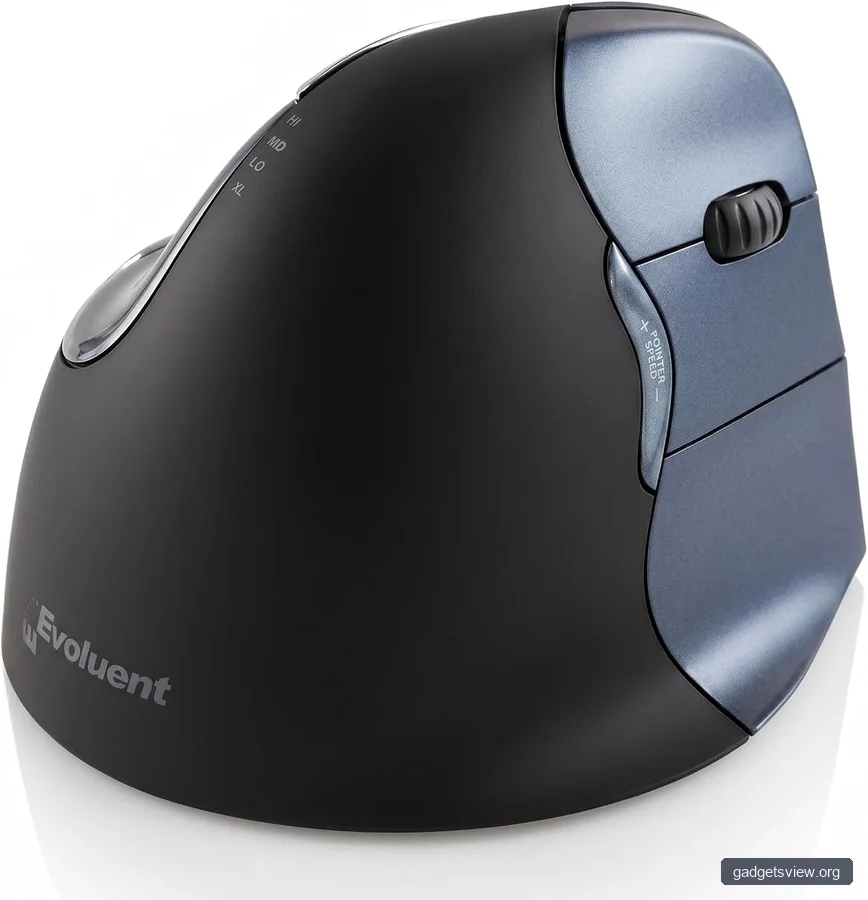
There are two broad aim styles: lower sensitivity for larger arm movement and higher sensitivity for quicker wrist movement. Many players land somewhere in between. The best choice is the one that lets you stay accurate while still turning comfortably.
Lower sensitivity often helps with micro-adjustments and smooth tracking. Higher sensitivity can help if you play in tight spaces or need fast turns. The tradeoff is control versus speed, so you should test both ends before settling in the middle.
Ask yourself three simple questions
- Do I overshoot targets often?
- Do I struggle to turn fast enough?
- Can I track moving targets without shaking?
If you overshoot a lot, your setting may be too fast. If you feel stuck and slow, it may be too low. The right sensitivity usually feels calm during tracking and quick enough for emergency turns.
Match Your Mouse Hardware to Your Settings
Settings alone cannot fix every aim issue. Your mouse shape, grip, sensor behavior, and mousepad space all affect how the final setup feels. A clean software setup works best when the hardware supports it.
If your mouse is too small or too large for your hand, your grip can become tense. That tension shows up as shaky aim. The same is true if your mousepad is too cramped for your sensitivity.
| Player need | Better fit | Strength | Limitation |
|---|---|---|---|
| Precise micro-aim | Lower sensitivity | Easier fine control | Needs more desk space |
| Fast turns and close-range fights | Higher sensitivity | Quick target changes | Can be harder to control |
| Balanced all-around play | Moderate sensitivity | Adaptable for most games | May not excel in extremes |
Who should choose what: If you play aim-heavy shooters and want tighter control, lean lower. If you need quick reactions in close fights, lean higher. If you are not sure, start in the middle and refine from there.
Use the Right Grip, Posture, and Mousepad Space
Your hand position matters more than many players think. A tense grip can cause shaky movement, while a relaxed grip helps you make cleaner adjustments. Your posture also affects how naturally your arm can move across the desk.
Try to keep your wrist neutral and avoid squeezing the mouse too hard. If the mousepad feels too small, your sensitivity may be forcing you to lift and reset too often. More room often gives you more control, especially for lower sensitivity play.
Small fixes that can improve consistency
- Keep your forearm supported if that feels comfortable.
- Relax your shoulders before practice.
- Use a mousepad that gives you enough room to swipe without hitting the edge.
- Avoid changing grip style every session.
Comfort is not a luxury here. If your setup makes you tense, your aim will usually suffer. A good setup should feel repeatable, not exhausting.
Troubleshooting Common Aim Problems
If your aim still feels off after changing settings, use a simple troubleshooting pass. Many issues come from one of a few predictable causes. The table below can help you narrow it down faster.
| Problem | Likely cause | What to try |
|---|---|---|
| Overshooting targets | Sensitivity too high or grip too tense | Lower sensitivity slightly and relax your hand |
| Slow turns feel hard | Sensitivity too low | Raise it in small steps and retest |
| Cursor feels uneven | Acceleration, smoothing, or unstable polling | Disable enhancements and test a stable polling rate |
| Aim changes day to day | Settings or grip keep changing | Lock in one setup and practice the same way |
If you still cannot isolate the issue, reduce variables. Use one mouse, one DPI, one game sensitivity, and one test routine for a week. Consistency often reveals the real problem faster than constant tweaking.
FAQ
What is the best DPI for gaming?
There is no universal best DPI. A stable, moderate DPI combined with in-game sensitivity is usually easier to control than extreme settings. The best choice is the one that gives you smooth tracking and reliable small adjustments.
Should I use mouse acceleration for gaming?
For most players, no. Mouse acceleration changes movement based on speed, which can make aim less predictable. If you want consistency, turning it off is usually the better choice.
Is a higher polling rate always better?
Not always. A higher polling rate can help responsiveness, but only if your mouse and PC handle it smoothly. If you notice stutter or strange behavior, choose the most stable setting instead.
How long should I test a new sensitivity?
Give it enough time to feel natural, but not so long that you keep a bad setting for weeks. A short practice session is enough to spot major issues, while a few days of normal play can confirm whether the change truly helps.
Why does my aim feel different from game to game?
Different games may handle sensitivity, field of view, and input differently. That is why it helps to keep your mouse settings consistent and adjust game sensitivity separately for each title.
Conclusion
To optimize your aim, start with a clean baseline, remove acceleration, set a stable DPI, and tune in-game sensitivity in small steps. Then test your setup with the same routine until it feels controlled and repeatable. The best setup is not the fastest one; it is the one that gives you steady, reliable aim every time you play.
If you want to keep improving, make one change at a time and write down what you notice. That simple habit will help you figure out how to optimize gaming mouse settings for your own hand, desk, and game style.