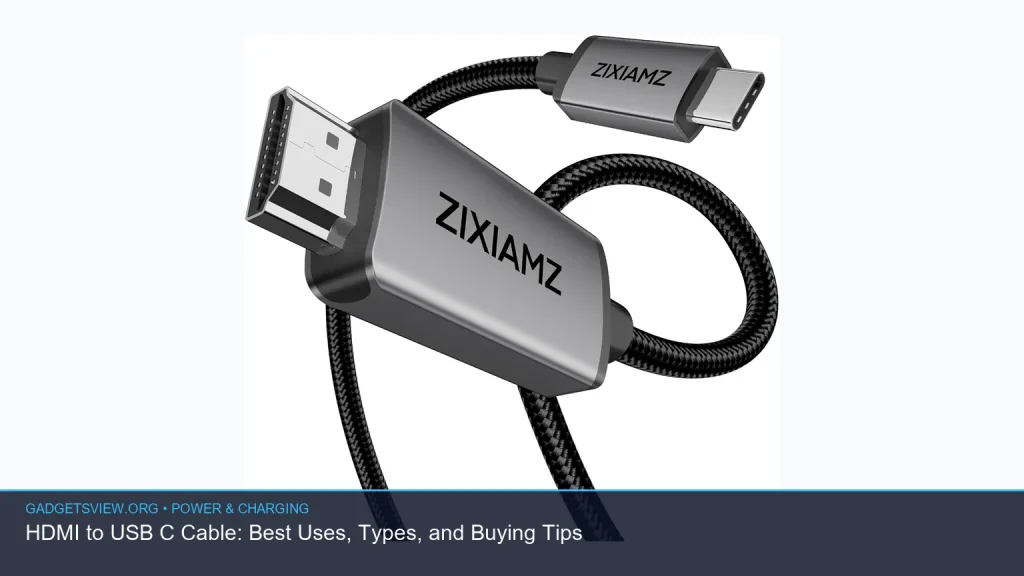
If you’re trying to connect a USB-C device to a monitor, TV, or projector, an hdmi to usb c cable can be useful in the right setup, but the name can be confusing. In many cases, what you really need depends on which device is sending video, which one is receiving it, and whether the port supports display output at all. This guide explains the best uses, cable types, and smart buying tips so you can choose the right option without guessing.
📖 Table of Contents
📌 Key Takeaways
- An hdmi to usb c cable only works when the device and port support the right kind of video output or input.
- Many buyers actually need a usb c to HDMI adapter, a usb c to displayport cable, or a dock instead of a direct cable.
- Check whether your usb type c port for charging also supports video, data, or Thunderbolt before you buy.
- Match the cable to the use case: projector, monitor, gaming setup, presentations, or device charging and data transfer.
What an HDMI to USB-C Cable Is, and When It Makes Sense
An hdmi to usb c cable is meant to connect HDMI and USB-C devices, but the direction matters. HDMI is usually the video source on a laptop, console, or media player, while USB-C may be used for display input on certain monitors, tablets, capture devices, or portable screens. That means not every USB-C port can accept HDMI video.
Before buying, confirm the exact direction you need. If your laptop has USB-C and you want to send video to an HDMI display, you likely need a USB-C to HDMI adapter or cable, not the reverse. If you are connecting a camera, tablet, or device to a USB-C display or capture accessory, the cable type may be different again.
Common use cases
- Connecting a USB-C device to a compatible monitor or portable display
- Using a video capture setup with a USB-C input device
- Setting up a presentation display with a projector or TV
- Adapting between older HDMI gear and newer USB-C hardware
How to Check Compatibility Before You Buy
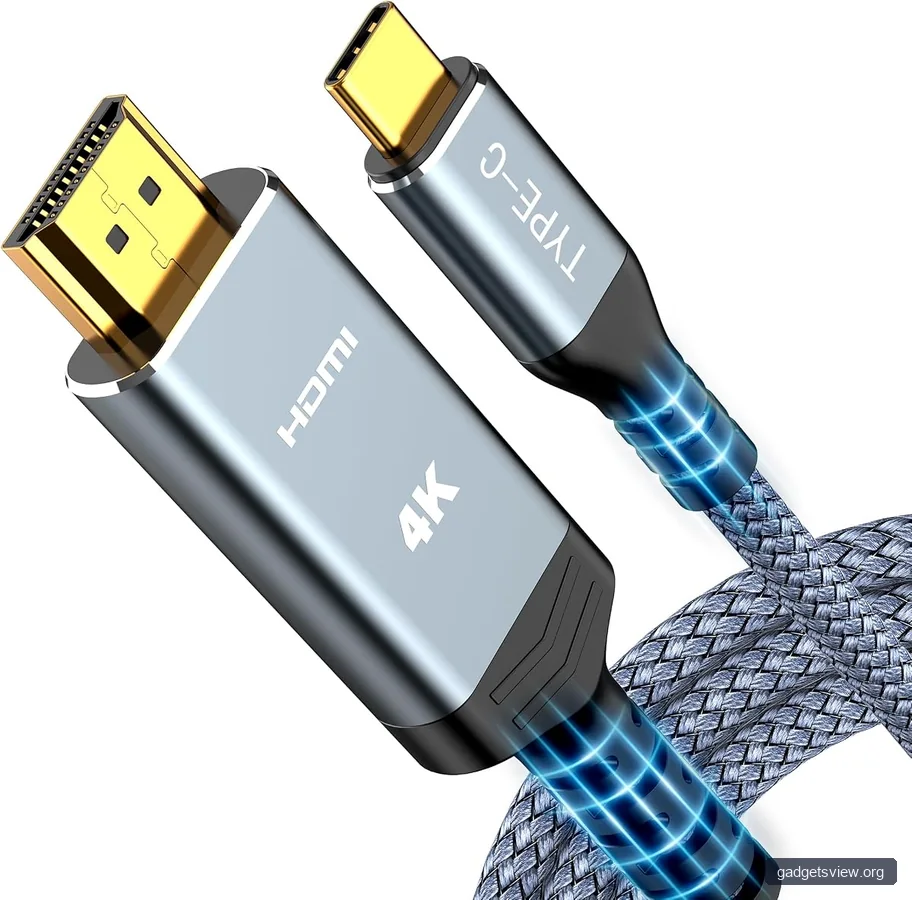
The biggest mistake is assuming all USB-C ports do the same thing. Some ports only handle charging, some handle data, and some support video output through DisplayPort Alt Mode or Thunderbolt. A usb type c port for charging alone will not send video to a screen.
Look for labels, icons, and device specs. If you see a lightning bolt, DisplayPort symbol, or Thunderbolt marking, that is a strong clue that the port may support display output. If the device manual says only “charging” or “data transfer,” it may not work for video.
Quick compatibility checklist
- Identify which device is sending the video signal.
- Check whether the USB-C port supports video output or video input.
- Confirm whether you need HDMI source to USB-C display, or USB-C source to HDMI display.
- Review resolution support, refresh rate needs, and any adapter requirements.
- Verify the cable or adapter is designed for that exact direction.
Types of HDMI and USB-C Video Cables
There are several related cable types, and each serves a different job. Choosing the right one is easier once you understand the difference between video, data, and charging functions. The best pick often depends on the port on each device, not just the connector shape.
| Cable type | Best for | Strengths | Limitations |
|---|---|---|---|
| HDMI to USB-C cable | Specialized setups with USB-C video input | Direct connection in supported devices | Direction-specific; not universal |
| USB-C to HDMI adapter or cable | Laptops, tablets, phones to HDMI displays | Very common and easy to use | Requires video-capable USB-C port |
| USB-C to DisplayPort cable | Monitors that use DisplayPort | Often strong for high refresh rate displays | Won’t help with HDMI-only displays |
| USB-C Thunderbolt cable | High-speed docks, displays, storage | Fast data and display support in compatible systems | Needs Thunderbolt-capable devices for best results |
If your goal is to connect a laptop to a TV or projector, a standard hdmi cable for projector may still be the simplest choice when the source device has HDMI output. If the source only has USB-C, then a USB-C video adapter is often the better fit than a direct HDMI-to-USB-C cable.
Best Uses by Device and Setup
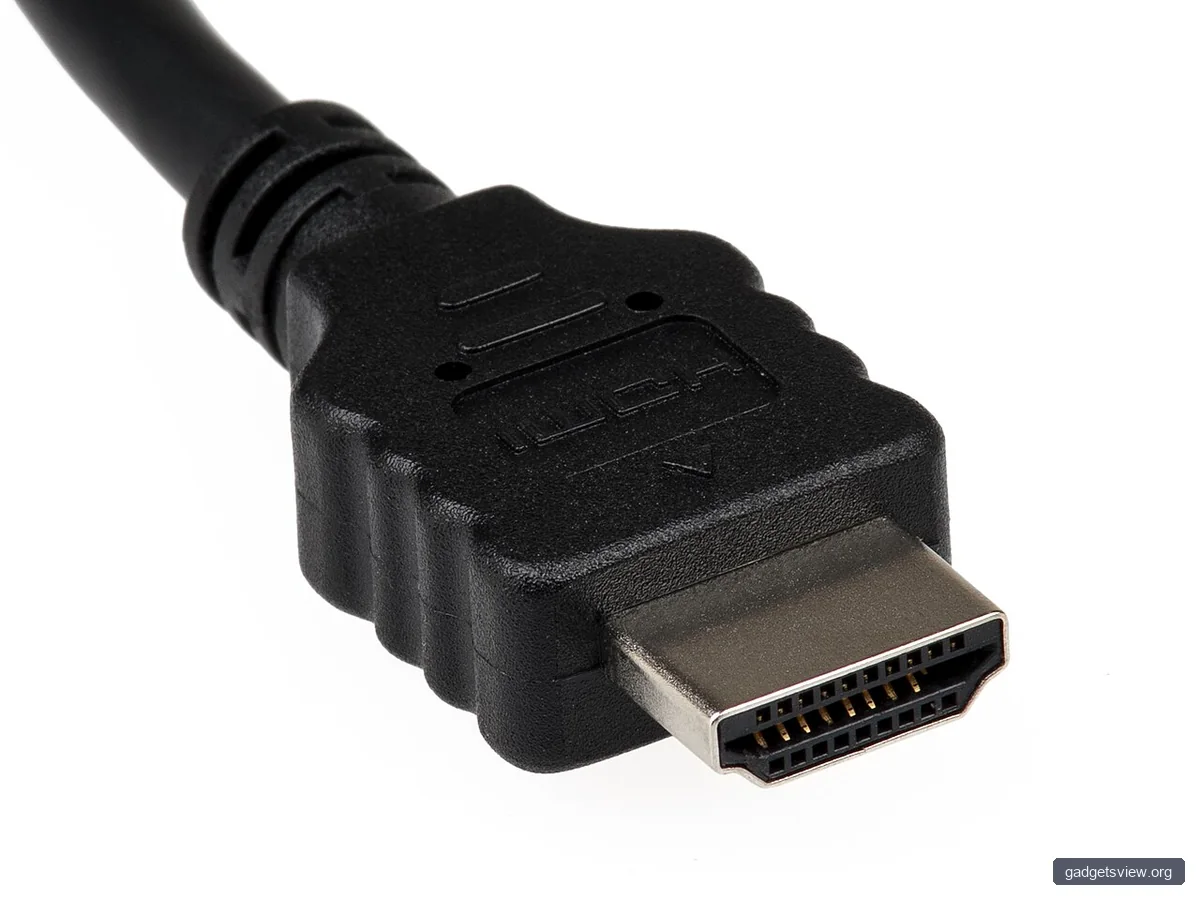
The right cable depends on the devices you already own. For many people, the best solution is not a single cable, but the simplest path that preserves image quality and compatibility. Think about what you are connecting, how often you will move it, and whether you need power too.
Laptops and desktops
Most USB-C laptops can send video through a compatible port, especially if the port supports DisplayPort Alt Mode or Thunderbolt. In that case, a usb c to usb c cable may be used for docking or display work when both devices support it. For HDMI displays, a USB-C to HDMI cable or adapter is usually the practical choice.
Monitors and portable displays
USB-C monitors are common in office and travel setups because they can carry video, data, and power in one connection. Some screens also support charging through the same cable, which is useful for keeping a laptop powered while working. This is where port labeling matters most, because a charging-only port cannot replace a video input.
Projectors and presentations
For meetings and classrooms, an hdmi cable for projector is often the easiest setup if the laptop has HDMI out. If the laptop only has USB-C, then an adapter that converts USB-C to HDMI is usually the better match. Test the connection before the presentation whenever possible.
Storage and data accessories
Not every USB-C cable is for video. A usb cable for external hard drive is about data transfer, not display output, and it should be chosen for speed and reliability. Likewise, a usb b to usb c cable is often used for printers, scanners, and older peripherals rather than screens.
Phone and accessory charging
If your goal is charging rather than video, look at the connector and power needs first. A usb c to micro usb cable can still matter for older accessories, while a usb c to usb c cable is now common for modern phones, tablets, and chargers. These cables are not substitutes for HDMI video connections.
How to Choose the Right Cable: Key Buying Tips
Choose the cable based on function first, then build quality second. A well-built cable that does the wrong job still won’t solve the problem. Start with the signal direction, then check device support, then review the practical details like length and durability.
What to look for
- Correct direction: HDMI to USB-C is not the same as USB-C to HDMI.
- Video support: Your USB-C port must support display input or output as needed.
- Standard support: For high-end setups, a usb c thunderbolt cable may be required.
- Length: Shorter cables can be easier to manage and may be more reliable in some setups.
- Use case: Pick video cables for displays, data cables for storage, and charge cables for power.
Strengths and limitations to consider
Strengths: A proper video cable setup can simplify desks, reduce adapters, and support clean presentation setups. USB-C can also combine video, data, and charging in one port when the hardware supports it.
Limitations: USB-C is flexible, but that flexibility also causes confusion. A cable that works for one laptop may fail on another if the port lacks the right video standard.
Who should choose what
- Choose HDMI to USB-C if you specifically need that direction and both devices support it.
- Choose USB-C to HDMI if a USB-C laptop or tablet is connecting to a normal HDMI monitor, TV, or projector.
- Choose USB-C to DisplayPort if your monitor uses DisplayPort and you want a direct display connection.
- Choose a dock or hub if you need display, charging, USB ports, and Ethernet in one setup.
Common Problems and Troubleshooting
If your display stays blank, the issue is often compatibility, not the screen. Start with the basics and work outward. Recheck the port type, cable direction, and whether the device supports display output through that USB-C port.
| Problem | Likely cause | What to try |
|---|---|---|
| No signal on screen | Wrong cable direction or unsupported port | Check device specs and swap to the correct adapter |
| Image appears but cuts out | Loose connection or cable quality issue | Reconnect firmly and test with a shorter cable |
| Charging works, video does not | USB-C port supports power only | Look for DisplayPort Alt Mode or Thunderbolt support |
| Works on one device, not another | Different port capabilities | Verify each device separately before replacing the cable |
FAQ
Is an HDMI to USB-C cable the same as a USB-C to HDMI cable?
No. The direction matters. HDMI to USB-C and USB-C to HDMI are not automatically interchangeable because each one is designed for a specific signal path. Always match the cable to the source device and the display device.
Can a USB-C port be used only for charging?
Yes. Some devices have a usb type c port for charging that does not support video output. Check the device manual or port icons before buying any display cable.
Do I need a USB-C Thunderbolt cable for display use?
Not always. A usb c thunderbolt cable is useful in compatible systems that need fast data, charging, and display features. For basic video output, a standard USB-C video adapter may be enough if the port supports the right mode.
What cable should I use for an external hard drive?
A usb cable for external hard drive should be chosen for data transfer speed and connector type, not for video. If your drive is older, you may need a usb b to usb c cable or another data cable that matches the drive’s port.
When should I use a USB-C to DisplayPort cable instead?
Use a usb c to displayport cable when your monitor has DisplayPort input and you want a direct connection from a USB-C laptop or tablet. This is often a strong choice for desk setups and high-refresh-rate displays.
Conclusion
An hdmi to usb c cable can be useful, but only when the devices and signal direction match. Before buying, confirm whether you need HDMI to USB-C, USB-C to HDMI, or another cable type entirely. If you check the port support first, you’ll save time, avoid returns, and get a setup that actually works.
Your next step is simple: identify the source device, check the display device, and compare their port capabilities. Then choose the cable or adapter that fits the exact connection you need.